Get started with FieldCraft
In about 10 minutes, you install FieldCraft, create a Cycle time field from a recipe and search your work items by it.
Before you begin
-
Jira permission: you're a Jira admin, with the Administer Jira global permission.
-
Site: Jira Cloud, with some work items that have reached a Done status.
1. Install the app
-
Open FieldCraft on the Atlassian Marketplace and install it on your Jira site.
-
Approve the access FieldCraft asks for. See Data security and privacy for what each permission is for.
Result: FieldCraft appears in your site's list of apps.
2. Open the admin page
-
In Jira, go to Settings (⚙) > Marketplace apps.
-
In the sidebar, under Apps, select FieldCraft: Custom Fields.
Result: The FieldCraft admin page opens on the Fields tab (later, on the tab you used last). On a new site, it shows a gallery of ready-made fields.
3. Create a field from a recipe
-
On the Fields tab, select New field from recipe. The recipe gallery opens.
-
Select Time spent, then select the Cycle time recipe.
-
Keep the name Cycle time, or enter your own in Field name.
-
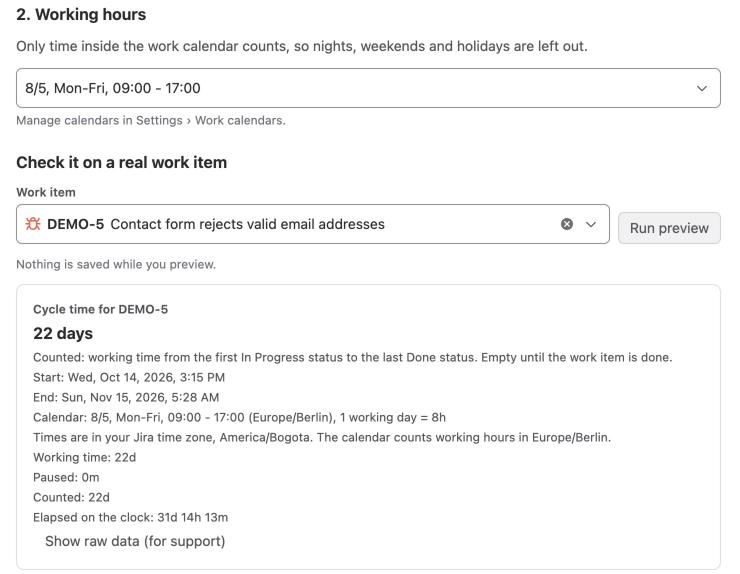
Under Working hours, select your office-hours calendar. If you have none yet, select the button that starts with Create 8/5, Mon to Fri, 09:00 to 17:00. It creates an office-hours calendar in the time zone shown on the button (your Jira profile's).
-
Under Check it on a real work item, select Run preview. You see the value the field would have on a suggested work item.
-
Under Show it on screens, select the screens where your teams should see the field.
-
Select Create field.
Result: A page titled Cycle time is ready lists what FieldCraft set up.
4. Fill in older work items
New fields have no values on older work items yet. FieldCraft can fill them in the background.
-
On the Cycle time is ready page, find the Fill in existing work items card.
-
Select Fill last 90 days.
Result: FieldCraft fills in work items created in the last 90 days or still open. You can close the page while it runs. Progress shows on the Calculation tab.
5. See and search the values
-
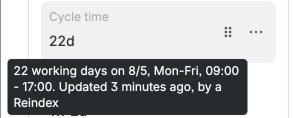
Open a work item that reached a Done status, on a screen you picked. You see its cycle time, such as
2d 4h. -
Hover over the value. You see when it was calculated and which work calendar it used.
-
In Jira search, run this JQL to find work that took more than five working days:
"Cycle time" > 5 ORDER BY "Cycle time" DESC
Result: The list shows the slowest work first. You can save it as a filter and add it to a dashboard.
What's next
-
Field recipes: 55 more ready-made fields, from reopen counts to time to first response.
-
Measure cycle time in working hours: add a traffic light and a dashboard to this field.
-
Work calendars: set your team's real hours, breaks and holidays.
-
How values stay current: when FieldCraft recalculates values and what search shows.