Fields
This section shows you how to create, configure, check and remove FieldCraft fields.
You need to be a Jira admin for most of these tasks.
The Fields tab
The Fields tab lists every FieldCraft field on your site. To open it, go to Settings (⚙) > Marketplace apps > FieldCraft: Custom Fields.
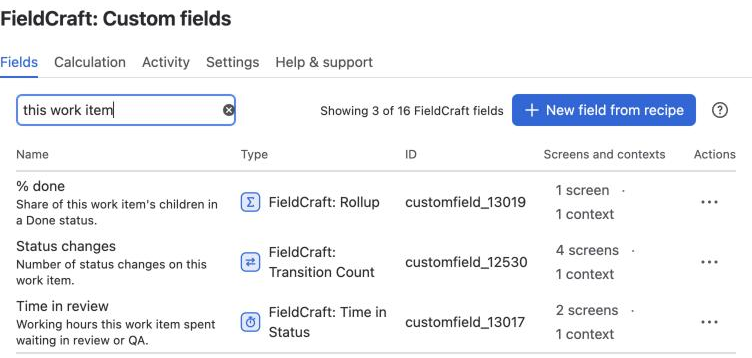
Toolbar
To find a field, type in Filter by name or description. The count next to it shows how many fields match.
To create a field, select New field from recipe. The recipe gallery opens.
The ? button opens the Help & support tab.
Table
The table shows 20 fields a page.
| Column | What it shows |
|---|---|
| Name | The field name, with its description below it |
| Type | The field type, for example FieldCraft: Time Between |
| ID | The field ID, for example customfield_10142. Hidden in narrow windows |
| Screens and contexts | How many screens show the field and how many contexts it has. Select a count to open it in Jira |
| Actions | The ••• menu |
You can sort by Name, Type and ID.
A Not configured lozenge means no context has saved settings yet. The field calculates with its type's defaults until you save a configuration.
The ••• menu
The menu holds these items, in this order:
| Item | What it opens |
|---|---|
| Edit configuration | FieldCraft's configuration page for the field. With several contexts, Jira's context list opens first |
| Edit details | Jira's page for the field name and description |
| Contexts and default value | Jira's context list for the field |
| Associate to screens | Jira's screen list for the field |
| Move to trash | A dialog that moves the field to Jira's trash |
When the list is empty
If no field matches your filter, you see No fields match your search.
If your site has no FieldCraft fields yet, the tab shows the recipe gallery under Start with a ready-made field.
Pages in this section
-
Create a field from a recipe: pick a ready-made field and check it before you create it.
-
Create a field in Jira settings: create any FieldCraft field type from Jira's fields page.
-
Configure a field: open the configuration page and save settings per context.
-
Check a field on a work item: see the value a configuration gives before you save it.
-
Show a traffic light or progress bar: color a number field by thresholds.
-
Search and report with FieldCraft fields: use values in JQL, boards, dashboards and exports.
-
Acknowledge app access: let fields that read other work items start calculating.
-
Move a field to the trash: remove a field and restore it within 60 days.
Related
-
Field recipes: every ready-made field, with a JQL example.
-
Field types: what each FieldCraft field type calculates.
-
How values stay current: when FieldCraft recalculates values.