Connect Rovo, Claude or ChatGPT
Connect an AI assistant to FieldCraft so that you can ask it about your fields and values in plain words.
In Rovo, you add FieldCraft's tools to an agent. For Claude, ChatGPT and other MCP clients, an admin enables the tools once, and then each person signs in.
Before you begin
-
FieldCraft: installed, with an active license.
-
For Rovo: you can create or edit agents in Rovo Studio.
-
For other AI clients: a site admin or organization admin enables the tools in Atlassian Administration. The client needs to support remote MCP servers with OAuth sign-in. You don't need a Rovo license for this.
-
To change fields through the assistant: you're a Jira admin (Administer Jira global permission).
Add the tools to a Rovo agent
-
Open Rovo Studio, and create an agent or open one you can edit.
-
Add tools to the agent, and choose FieldCraft from the apps connected to your site.
-
Save the agent.
Result: The agent can use FieldCraft's tools when you chat with it.
Enable the tools for other AI clients
A site admin or organization admin does this once per site.
-
Go to admin.atlassian.com, and select your organization.
-
Select Apps > Sites, select your site, and then select Connected apps.
-
Find FieldCraft Custom Fields for Jira in the list, and select View app details.
-
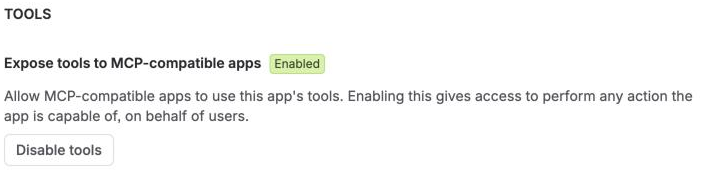
Under Expose tools to MCP-compatible apps, select Enable tools. A confirmation opens.
-
Read the confirmation, and confirm.
noteThe confirmation says: "Enabling this gives access to perform any action the app is capable of, on behalf of users." FieldCraft's tools still check each person's own permission first. See Who can do what.
Result: Expose tools to MCP-compatible apps shows Enabled. People on your site can connect their AI clients to FieldCraft.
Connect your AI client
-
In your AI client, add a remote MCP server, for example a custom connector in Claude. Use this URL:
https://mcp.atlassian.com/forge/ef464eb7-b6e3-4f4b-bf86-7777ba1784fe -
Sign in with your Atlassian account when the client opens Atlassian's sign-in page.
-
Pick your site, and approve the access.
-
Ask a first question, for example "Which FieldCraft fields do we have?"
Result: The assistant lists your FieldCraft fields with their type and a JQL tip.
If something doesn't work
-
The sign-in page lists no site, or says "Your account isn't associated with a supported site." An admin hasn't enabled the tools on your site yet. See Enable the tools for other AI clients.
-
A Jira admin tool says it needs the Administer Jira permission. If you're a Jira admin, open the FieldCraft admin page in Jira once, then ask again. FieldCraft can then check your permission.
-
Every tool says the license isn't active. A site admin renews it. See Licensing.
Related
-
Use FieldCraft with AI assistants: what you can ask, and how a change goes from plan to apply.
-
AI assistant tools: every tool, who can use it, and what it returns.
-
Data security and privacy: how the tools reach your site's data.