Write a Jira expression
You write the expression on the field's configuration page, check it on a work item, and save it.
You follow the same steps for all five types: Text, Number, Date, Date & time and User.
Before you begin
-
Jira permission: Jira admin, with the Administer Jira global permission.
-
FieldCraft: installed, with an active license.
-
A field of one of the five types. Create a field in Jira settings if you don't have one.
Write the expression
-
Go to Settings (⚙) > Marketplace apps > FieldCraft: Custom Fields. The Fields tab opens.
-
Open the field's ••• menu and select Edit configuration. The configuration page opens with the Jira Expression: editor.
-
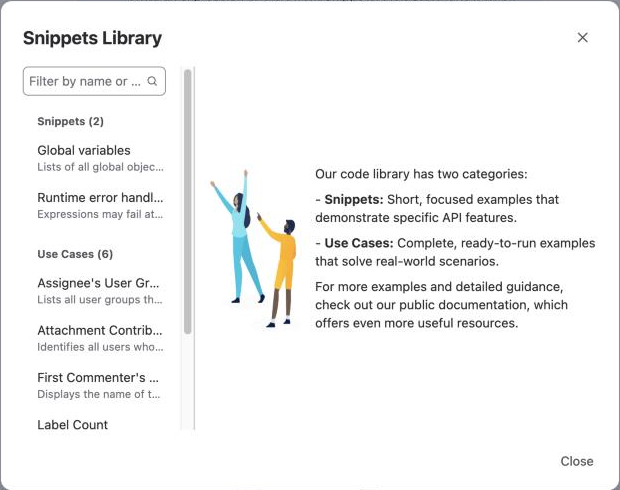
Select Snippets. The Snippets Library opens, with Snippets and Use Cases.
-
Find a snippet, and select its copy button.
-
Close the library, and paste the snippet into the editor.
-
Change the expression to fit your fields, for example with your own field IDs.
Check and save it
-
Turn on Check it on a work item. A work item picker and the Check button appear.
-
Enter a work item key, such as
KAN-42, and select Check. The value would be: shows the result. -
Select I understand, and the values may be shown to everyone who can see the work item.
-
Select Save. For all types except Text, Jira checks the expression first.
Result: FieldCraft stores the result on each work item when it changes or when you open it. To fill in older work items, recalculate existing work items.
What the expression can use
The issue variable is the work item being calculated, for example issue.status.name or issue.parent?.dueDate.
FieldCraft runs the expression with the app's access. Your expression can read data that some viewers can't, such as internal comments.
For the language and every property, see Jira expressions on the Atlassian developer site.
What the value must be
Each type stores one kind of value. If your expression returns anything else, the field stays empty.
| Field type | The expression must return |
|---|---|
| Jira Expressions - Text | Text. Add + '' after a number, or use join(', ') on a list |
| Jira Expressions - Number | A number, or text that is a number |
| Jira Expressions - Date | A date, such as issue.dueDate |
| Jira Expressions - Date & time | A date and time, such as issue.created |
| Jira Expressions - User | A user, such as issue.assignee, or an account ID |
A null result leaves the field empty.
Snippets for each type
Every type offers Global variables and Runtime error handling. Global variables lists the variables you can use; it isn't an expression.
Under Use Cases, you see the snippets that fit your type.
| Field type | Use cases |
|---|---|
| Jira Expressions - Text | Assignee's User Groups, Attachment Contributors, First Commenter's Name, Label Count, Parent priority, Summaries of linked issues |
| Jira Expressions - Number | Days since created, Open sub-tasks, WSJF score, RICE score |
| Jira Expressions - Date | Latest sub-task due date, Parent's due date |
| Jira Expressions - Date & time | Last comment added, Parent resolved |
| Jira Expressions - User | Last commenter, Parent's assignee |
If the save stops
-
Jira can't run this expression lists Jira's messages. Fix the expression and save again.
-
The result doesn't fit this field means every value would probably be empty. Fix the expression, or select Save anyway.
If you press Ctrl+S or Cmd+S in the editor, the editor doesn't save. Use Save.
Related
-
Jira expressions: pick the right type and see when values update.
-
Check a field on a work item: test any field before you save it.
-
Acknowledge app access: why the field needs the box ticked.