Create a work calendar
Create a work calendar so that time-based fields count only your team's working hours, without breaks and holidays.
Before you begin
-
Jira permission: Jira admin (Administer Jira global permission).
-
FieldCraft: installed, with an active license.
-
Your site has fewer than 10 work calendars. At the limit, FieldCraft shows New Calendar could not be created because the maximum number has been reached.
Name the calendar
-
Go to Settings (⚙) > Marketplace apps > FieldCraft: Custom Fields, and select the Settings tab.
-
Select Work calendars. The list of calendars opens.
-
Select Create work calendar. An empty calendar form opens.
-
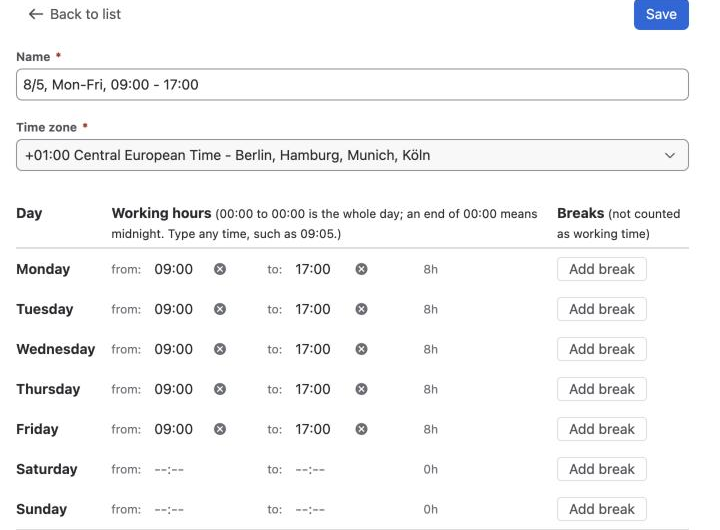
In Name, enter a name your fields will show, for example
Office hours Berlin. -
In Time zone, select the zone the working hours are in.
Set the working time
-
For each working day, set from: and to: times. Leave both empty for a day off.
-
To add a break, select Add break on that day. It starts as 12:00 to 13:00. Change the times if you need to.
-
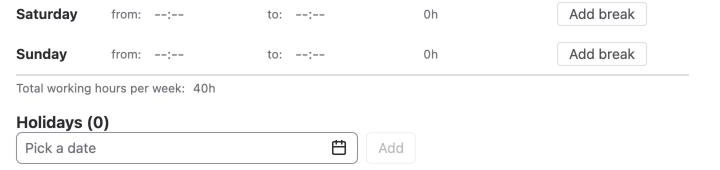
Under Holidays (N), pick a date in Holiday to add, and select Add. Repeat for each holiday.
-
Check Total working hours per week, and select Save.
Result: You see Work calendar saved. Back to list shows it with your other calendars.
You can now select it as the work calendar of a Time in Status, Time Between or Countdown field.
Start from a template
Next to Create work calendar, open the menu and select a template:
-
Create "24/7, Mon-Sun, 00:00 - 00:00" calendar
-
Create "8/5, Mon-Fri, 09:00 - 17:00" calendar
You see Created and the calendar's name. The templates use the Berlin time zone, so edit the calendar if your team works elsewhere.
If the calendar doesn't save
FieldCraft marks each field to fix and shows Fix the marked fields to save.
| Message | What to do |
|---|---|
| Give the calendar a name. | Enter a name |
| Choose the time zone its working hours are in. | Select a time zone |
| Set both times, or clear both for a day off. | Fill in the missing time, or clear both |
| Ends before it starts. … | For a night shift, use 00:00 to 00:00 with a break from the shift's end to its start |
| A break needs both times. Remove it if it isn't needed. | Fill in the break, or select Remove |
A day with the same start and end time saves as 0 hours. For the whole day, use 00:00 to 00:00.
A calendar with no working hours on any day still saves, with the warning Work calendar saved without working hours. Every field that uses it counts 0 until you add working hours to at least one day, and those fields' configuration pages say so under the calendar picker.
Related
-
Work calendars: what counts as working time, with an example.
-
Configure a field: select the calendar in a field's settings.
-
Recalculate existing work items: update stored values after you change a calendar.