Configure a field
Open a field's configuration page, choose what it calculates, and save it for one field context.
Each field type has its own settings. This page covers what every configuration page shares.
Before you begin
-
Jira permission: Jira admin (the Administer Jira global permission).
-
FieldCraft: installed, with an active license.
-
The field exists. See Create a field from a recipe or Create a field in Jira settings.
Open the configuration page
-
Go to Settings (⚙) > Marketplace apps > FieldCraft: Custom Fields, and open the Fields tab.
-
In the field's ••• menu, select Edit configuration.
If the field has one context, its configuration page opens.
If it has several, Jira's context list opens. Open the configuration of the context you want to change.
What every page shows
| Part | What it does |
|---|---|
| Help box | Explains at the top what the field type calculates |
| Heading | The field type, with the field ID in brackets, for example (customfield_10142) |
| Save | Saves the settings for this context |
| Settings | The options of this field type, described on its field type page |
| Check it on a work item | Shows the value one work item would get. See Check a field on a work item |
A banner above the help box tells you when the app is unlicensed or when an update is available.
Save the configuration
-
Change the settings you need.
-
Optional: turn on Check it on a work item, and check the value on one work item.
-
Select Save.
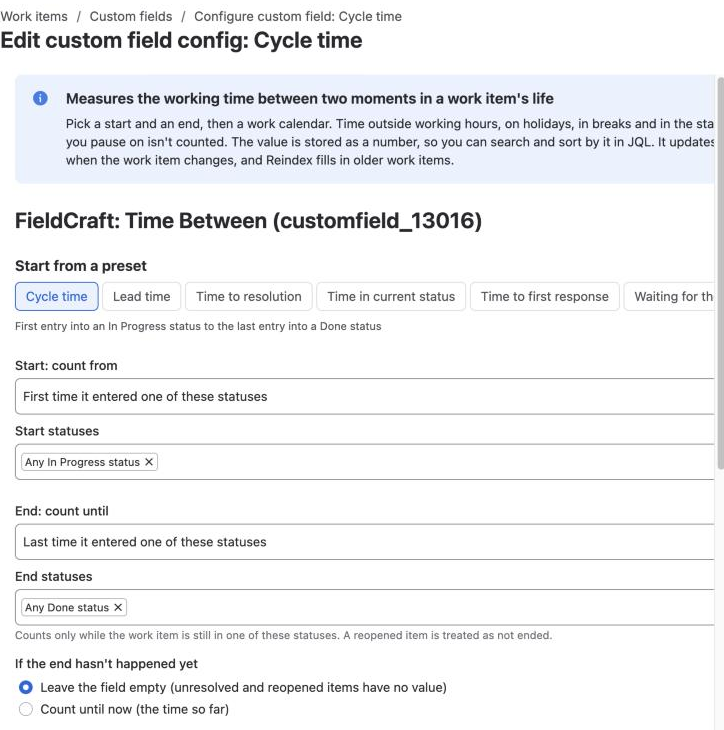
Result: FieldCraft uses the new settings the next time a work item changes or someone opens it.
If someone else saved the same context after you opened the page, your change isn't saved. You see This configuration changed after you opened it.
Reload the page to see the latest settings, then make your change again.
Some types read other work items with FieldCraft's access. For them, you can select Save only after you acknowledge app access.
Update older work items
Older work items keep values from the earlier settings until FieldCraft recalculates them.
After you save, the Calculation tab offers an update under Needs your attention, for example Update Cycle time.
-
Select Update to recalculate work items created in the last 90 days or still open.
-
Select Change scope to pick the work items with JQL.
-
Select Not now to skip it.
The update runs in the background, so you can close the page.
Contexts
A field context sets which spaces and work types use the field. Each context has its own FieldCraft configuration.
To add or change contexts, select Contexts and default value in the field's ••• menu.
The Not configured lozenge on the Fields tab means no context has a saved configuration yet.
Related
-
Field types: the settings of each field type.
-
Check a field on a work item: see a value before you save.
-
Recalculate existing work items: reindex older work items with JQL.
-
How values stay current: when FieldCraft recalculates values.