Update from an older version
If your site runs FieldCraft version 4, 5 or 6, update it to get the current version. This page tells you what changes and what to do afterwards.
Before you begin
-
Admin role: site admin or organization admin, to open Connected apps in Atlassian Administration.
-
Jira permission: Jira admin, to acknowledge fields on the FieldCraft admin page after the update.
-
If you aren't an admin, send this page to one.
What the update brings
-
Values that stay current in search, boards and exports, calculated on the server when work items change.
-
Field recipes: ready-made fields, checked on your own work item before you create one.
-
New field types, such as Time Between, Countdown, Rollup and comment fields.
-
Traffic lights and progress bars on number fields.
-
Reindexes on the server, with progress on the Calculation tab and a history on the Activity tab.
-
A FieldCraft page in space settings for space admins.
-
AI assistant tools for Rovo, Claude and ChatGPT.
Why an admin approves it
The current version is a major update, because FieldCraft asks for new access:
-
It sends error reports and usage counts to Sentry. See Error reports and usage counts.
-
On version 4, it also asks to read user details, with the
read:jira-userscope.
Atlassian installs a major update only after an admin approves it. Forge doesn't notify you, so the update often goes unnoticed. Until you approve it, your site keeps running its current version.
On versions 4 and 5, the FieldCraft admin page and the field configuration pages say A newer version of FieldCraft is available. Jira admins see an Update in Manage apps button.
License
Versions 4 and 5 don't check a license. The current version is a paid app. For prices, see the Marketplace listing.
Atlassian doesn't include a trial when an app moves from a free version to a paid one, so the subscription starts when you update.
Your data stays
Updating keeps your FieldCraft fields, their configurations and your work calendars.
Fields keep their IDs, so filters, dashboards and screens that use them keep working.
Don't uninstall and reinstall FieldCraft to update it. Uninstalling removes your work calendars from the app's storage. Always use Update.
Update the app
-
Go to Settings (⚙) > Marketplace apps > Manage apps.
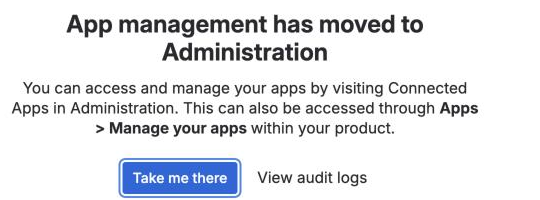
Jira says that app management has moved to Atlassian Administration.
-
Select Take me there.
Connected apps opens in Atlassian Administration, in a new tab.
-
Find FieldCraft Custom Fields for Jira, and select View app details.
-
Review the new access the update asks for, and approve the update.
Result: FieldCraft's admin page shows five tabs: Fields, Calculation, Activity, Settings and Help & support.
After the update
-
Go to Settings (⚙) > Marketplace apps > FieldCraft: Custom Fields, and select the Calculation tab.
-
In Needs your attention, review each field that waits, and select Acknowledge.
Parent Field and Jira Expressions - Text fields read data with the app's access. They keep their last value until you acknowledge them. See Acknowledge app access.
-
Select Reindex, and recalculate all fields on the work items you report on.
Older versions calculated a value only when someone opened the work item. A reindex brings every value up to date. See Recalculate existing work items.
Result: Once the reindex finishes, the Calculation tab shows All values are current.
Related
-
Licensing: what works without an active license.
-
Data security and privacy: what FieldCraft stores and sends.
-
FieldCraft settings: the calculation switches, which are on after the update.