Time Between
A Time Between field shows the working time between two moments in a work item's life, such as its cycle time or lead time.
Only working time on a work calendar counts.
To add up all the time a work item spent in some statuses, use Time in Status instead.
What you see
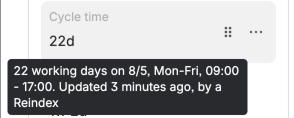
On the work item, you see a readable duration, such as 2d 6h 30m.
While the value still counts, so far appears under it.
When you hover over the value, you see its unit and the work calendar it counts on.
Lists show the same duration format.
Search, sorting and CSV exports use the stored number.
Presets
A new field starts with the Cycle time preset.
You can select another preset under Start from a preset and then change any setting.
| Preset | Counts from | Counts until |
|---|---|---|
| Cycle time | The first entry into an In Progress status | The last entry into a Done status |
| Lead time | Created | The last entry into a Done status |
| Time to resolution | Created | The Resolved date |
| Time in current status | The last entry into the current status | Now |
| Time to first response | Created | The first public reply by the team, and up to now until then |
| Waiting for the team | The customer's last comment | Now, while the team hasn't replied. Empty once it has |
The presets use Jira's status categories, such as Any In Progress status, so they work on every workflow.
Settings
| Setting | What it does | Default |
|---|---|---|
| Start: count from | Created date, A date field, the first or last time the work item entered some statuses, or the customer's last comment while the team hasn't replied | First time it entered one of these statuses: Any In Progress status, from the Cycle time preset |
| End: count until | Resolved date, A date field, the first or last time it entered some statuses, Now (the moment of calculation), or the first public reply by the team | Last time it entered one of these statuses: Any Done status, from the Cycle time preset |
| If the end hasn't happened yet | Leave the field empty, or count until now | Leave the field empty |
| Pause: don't count time in these statuses (optional) | Time in these statuses doesn't count, for example Blocked | None |
| Work calendar | Only working hours count, minus breaks and holidays, in the calendar's time zone | The 24/7 calendar |
| Store the value in | Working days, Hours, Minutes or Seconds | Working days |
| Display | A plain number, a traffic light or a progress bar | Plain number |
A working day is the calendar's average working day. On the 24/7 calendar, it's 24 hours.
First and last entries
If you end at the first entry into some statuses, the value stays once the work item gets there.
If you end at the last entry, the value counts only while the work item is still in one of those statuses. A reopened work item counts as not ended.
If you start at the last entry, FieldCraft takes the last entry before the end. For reopened work, you measure the final run.
Example: cycle time in working days
You want to see how many working days your team needs from starting work to finishing it.
-
Create the field from the Cycle time recipe, or open the configuration page of a Time Between field.
-
Select the Cycle time preset.
-
In Work calendar, select your office-hours calendar, for example 8/5, Mon-Fri, 09:00 - 17:00.
-
In Store the value in, keep Working days, and select Save.
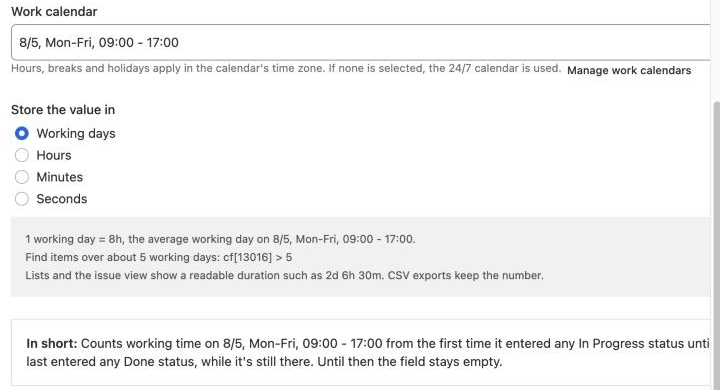
Result: A story that you started on Monday at 10:00 and finished on Wednesday at 14:00 shows 2d 4h. Until the story reaches a Done status, the field is empty.
Search with JQL
JQL compares the stored number in the field's unit.
To find stories that took more than five working days, use:
"Cycle time" > 5 ORDER BY "Cycle time" DESC
You can also use the field ID, for example cf[10142] > 5.
The configuration page shows a threshold for your unit.
If you change Store the value in, recalculate the field.
Stored values switch to the new unit only when you recalculate existing work items.
When the value updates
FieldCraft recalculates the field when the work item changes.
The work item view always shows you the current value.
A value that counts until now also moves forward in lists and search. The hourly refresh updates it, less often for older values.
Things to know
-
If the end comes before the start, the field is empty. It never stores a negative number.
-
A date-only start field counts from the beginning of that day. A date-only end field counts to the end of it.
-
A pause status that's also an end status never counts. The configuration page warns you about it.
-
For comment moments, the customer is the reporter or a portal-only customer. The team is everyone else.
-
Comments by apps and automation, and comments restricted to a group or role, never count.
Related
-
Time in Status: add up all the time spent in some statuses.
-
Work calendars: set working hours, breaks, holidays and the time zone.
-
Measure cycle time in working hours: a complete setup with a dashboard filter.
-
Show a traffic light or progress bar: color the value by thresholds.