Time in Status
A Time in Status field adds up the working time a work item spent in the statuses you choose, over every visit.
Only working time on a work calendar counts.
To measure the time between two moments, such as cycle time, use Time Between instead.
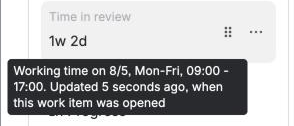
What you see
On the work item, you see a readable duration, such as 1w 2d 3h 15m.
A day is the calendar's average working day, and a week is its working week. On the 24/7 calendar, a day is 24 hours.
A work item that was never in the statuses shows 0h.
When you hover over the value, you see the work calendar it counts on and when it was last updated.
Lists show days, hours and minutes, such as 2d 6h 30m, and never weeks.
Search, sorting and CSV exports use the stored number of working seconds.
Settings
| Setting | What it does | Default |
|---|---|---|
| Watched Statuses | The statuses whose time adds up. Every visit to them counts | None |
| Work Calendar | Only working hours count, minus breaks and holidays, in the calendar's time zone | The 24/7 calendar |
| Display | A plain number, a traffic light or a progress bar, with thresholds in working days or working hours | Plain number |
Status options
Besides single statuses, Watched Statuses offers some options that adapt to each work item.
Any To Do status, Any In Progress status and Any Done status cover every status of that category. They also cover statuses you add to workflows later.
Current Status (dynamic Status field value) counts all the time in the status the work item is in now.
Previous Status (the status before the current one) counts all the time in the status it was in before. A work item whose status never changed counts nothing.
Example: time in review in working hours
You want to see how long stories wait in review during office hours.
-
Create the field from the Time in review recipe, or open the configuration page of a Time in Status field.
-
In Watched Statuses, select your review status, for example In Review.
-
In Work Calendar, select your office-hours calendar, for example 8/5, Mon-Fri, 09:00 - 17:00.
-
Select Save.
Result: A story in review from Monday 15:00 to Tuesday 11:00, and again for one hour on Wednesday, shows 5h.
Search with JQL
JQL compares the stored number of working seconds. One working hour is 3600.
To find work items that spent more than 8 working hours in review, use:
"Time in review" > 28800 ORDER BY "Time in review" DESC
You can also use the field ID, for example cf[10143] > 28800.
In Display, you type thresholds in working days or working hours, so you don't convert them.
When the value updates
FieldCraft recalculates the field when the work item changes.
While the work item sits in a watched status, the value keeps counting. The work item view always shows you the current value.
Lists and search follow through the hourly refresh, less often for older values.
Things to know
-
Always pick at least one status in Watched Statuses. A category option, such as Any In Progress status, works on every workflow.
-
The first status counts from the moment someone creates the work item.
-
On the work item, a long value can show weeks, such as
1w 2d. Lists show the same value in days. On a calendar with a 5-day week, that's7d. -
If someone deletes the field's work calendar, the field counts on the 24/7 calendar. Pick another calendar to count working hours again.
-
In Jira's list of field types, this type is FieldCraft: Time in Status.
Related
-
Time Between: measure the time from one moment to another, such as cycle time.
-
Work calendars: set working hours, breaks, holidays and the time zone.
-
Show a traffic light or progress bar: color the value by thresholds.
-
Field recipes: start from Time in progress, Time blocked and other ready-made fields.