A field is empty on a work item
This page helps you find out why a FieldCraft field has no value, and how to fill it in.
Symptom
You see None in a FieldCraft field on a work item. Or you find the field empty in search, lists, boards or exports.
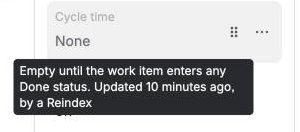
Find the cause
-
Open the work item, and hover over the empty value.
The hover tells you why the field is empty.
-
Match the text with the causes below:
-
Empty: the field isn't fully set up yet: go to The field isn't set up.
-
Not recalculated until a Jira admin reviews this field in FieldCraft: go to The field waits for a review.
-
Couldn't recalculate: go to The calculation failed.
-
Any other reason: go to Nothing on this work item matches.
-
-
If the value shows on the work item but not in search, go to Older work items have no value yet.
Older work items have no value yet
Cause: FieldCraft calculates a value when a work item changes or someone opens it. Work items that haven't changed since you added the field stay empty in search, lists and exports.
Solution: As a Jira admin:
-
Go to Settings (⚙) > Marketplace apps > FieldCraft: Custom Fields, and select the Calculation tab.
-
Under Needs your attention, find Fill in followed by the field's name, and select Fill in.
If there's no suggestion, select Reindex instead. See Recalculate existing work items.
Result: The values fill in on the server. You can close the page while it runs.
As a space admin, you can fill in your own space. In the space, go to Space settings > FieldCraft, and select Recalculate in this space.
The field waits for a review
Cause: Jira expression, Rollup and Parent Field types read data with FieldCraft's access. A new field of these types stays empty until a Jira admin acknowledges it.
Solution: As a Jira admin, acknowledge the field. See A field keeps its last value and doesn't update.
The field isn't set up
Cause: Nobody saved a configuration for the field's context yet. On the Fields tab, you see Not configured next to the field.
Solution: As a Jira admin:
-
On the Fields tab, open the field's ••• menu, and select Edit configuration.
-
Choose the settings, and select Save.
See Configure a field.
Nothing on this work item matches
Cause: The field has nothing to show for this work item yet. For example, the work item you look at has no parent, no matching comment, or hasn't reached the end status.
Solution: As a Jira admin, check the field on this work item:
-
Open the field's configuration page, and turn on Check it on a work item.
-
Enter the work item's key, and select Check.
The value would be: shows the result. The lines under it say what the calculation found.
See Check a field on a work item.
The calculation failed
Cause: FieldCraft couldn't calculate the value. The hover shows you the error.
Solution: See Some values failed to calculate.
Related
-
Recalculate existing work items: fill in values on older work items.
-
How values stay current: when FieldCraft calculates each value.
-
"FieldCraft app is not licensed": what the field shows when the license isn't active.