Move a field to the trash
Remove a FieldCraft field you no longer need. You can restore it from Jira's trash for 60 days.
Before you begin
-
Jira permission: Jira admin (the Administer Jira global permission).
-
FieldCraft: installed.
-
Check that no filter, dashboard or board you need uses the field.
Move the field to the trash
-
Go to Settings (⚙) > Marketplace apps > FieldCraft: Custom Fields, and open the Fields tab.
-
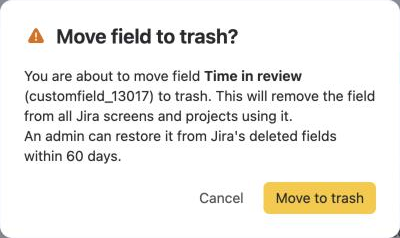
In the field's ••• menu, select Move to trash. The Move field to trash? dialog opens with the field's name and ID.
-
Select Move to trash.
warningThe field disappears from every screen and space that uses it. Jira deletes it for good after 60 days.
Result: You see Time in review moved to trash, for a field named Time in review. The field no longer appears on the Fields tab.
What happens to the field
The dialog says it this way:
"This will remove the field from all Jira screens and projects using it."
Work items no longer show the field, and FieldCraft stops calculating it.
An admin can restore it from Jira's deleted fields within 60 days. After that, Jira deletes the field and its values for good.
Restore the field
FieldCraft has no restore button of its own. You restore the field in Jira, within 60 days.
-
Go to Settings (⚙) > Work items > Fields.
-
Open the Deleted fields tab.
-
Find the field and restore it.
Result: The field is back on the Fields tab in FieldCraft.
Related
-
Fields: the Fields tab and its ••• menu.
-
Create a field from a recipe: make a new field instead.
-
Data security and privacy: what FieldCraft keeps about your fields.