Flag work that is close to its due date
Show on every work item how many working days are left until its due date or release, and find overdue work with one filter.
Problem: A due date tells you the day, not how much working time is left. You only notice overdue work when someone asks about it.
Solution: You create two Countdown fields from recipes, Days until due and Days to release. They count working days on your calendar, turn negative once the date has passed, and color themselves as the date comes closer.
What you'll need
-
FieldCraft, installed, with an active license.
-
The Administer Jira global permission, to create the fields.
-
Work items with due dates, or fix versions with release dates.
-
A work calendar with your team's hours. See Create a work calendar.
What your team will experience
-
A developer opens a work item due on Friday. Days until due shows
2d 3h left, with the due date under it. -
With less than one working day left, the value turns amber. Once the date has passed, it shows
1d 5h overduein red. -
As the project manager, you open the overdue filter each morning and see the most overdue work first.
-
Finished work keeps how early or late it finished, such as
Done 1d earlyin green.
Set it up
1. Create Days until due
-
Go to Settings (⚙) > Marketplace apps > FieldCraft: Custom Fields. The FieldCraft admin page opens.
-
On the Fields tab, select New field from recipe. The recipe gallery opens.
-
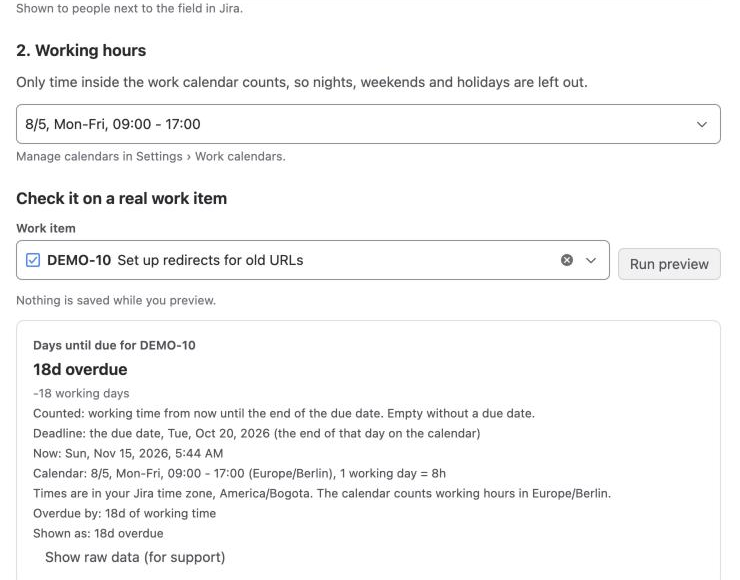
Select the Time spent category, then Days until due. The recipe form opens.
-
Under Working hours, select your team's calendar.
-
Under Check it on a real work item, enter the key of an open work item with a due date, and select Run preview.
-
Select Create field, then Fill last 90 days.
2. Create Days to release
-
Select New field from recipe, then Days to release.
-
Under Working hours, select the same calendar.
-
Select Create field, then Fill last 90 days.
Days to release counts to the release date of the work item's earliest unreleased fix version. If none of them has a date, it uses the earliest dated fix version, even a released one. Without a dated fix version, it stays empty.
3. Build the filters
-
In Jira's search, run this JQL:
"Days until due" < 0 AND statusCategory != Done ORDER BY "Days until due" ASC -
Save the filter, for example as
Overdue. -
Run this JQL, and save it as
Due within 2 working days:"Days until due" >= 0 AND "Days until due" < 2 AND statusCategory != Done -
On your dashboard, add a Filter results gadget for each filter.
Keep statusCategory != Done in both filters. Work that finished late keeps its negative number.
To find open work in releases less than 5 working days away, use:
"Days to release" < 5 AND statusCategory != Done ORDER BY "Days to release" ASC
How the countdown keeps moving
When you open a work item, you always see the current value.
Lists, filters and JQL move forward on their own while Refresh time-based values every hour is on in Settings > Calculation. Values within 7 working days of their date update every hour. Values further away update less often.
Outside working hours, the value stands still, because no working time passes.
A new due date or fix version updates the value within seconds. When you change a version's release date or release it, FieldCraft updates its work items on its own.
Check that it works
-
Set the due date of a test work item to tomorrow. Confirm that Days until due shows the time left.
-
Set the due date to yesterday. Confirm that the value shows overdue, in red, and that the work item is in your
Overduefilter. -
Move the work item to a Done status. Confirm that it shows how late it finished, such as
Done 1d late, and leaves the filter.
Related use cases
-
Countdown: deadlines, units and what happens when work is done.
-
Roll up story points to epics: follow progress on the same epics.
-
How values stay current: the hourly refresh and when lists catch up.
-
Work calendars: working hours, holidays and the time zone.