Track time to first response on requests
See in business hours how long your customers wait for a reply, and find the requests where you owe an answer.
Problem: In a queue sorted by date, you can't see who is waiting for whom. You can't tell requests where the customer answered hours ago from requests waiting on the customer.
Solution: You create three fields from recipes. Time to first response and Waiting for the team count business hours, and Last comment from says who wrote last. A queue filter then shows the requests that need a reply, longest wait first.
What you'll need
-
FieldCraft, installed, with an active license.
-
The Administer Jira global permission, to create the fields.
-
A service space in Jira Service Management. In other spaces, the reporter counts as the customer, and every comment is public.
-
A work calendar with your support hours. See Create a work calendar.
What your team will experience
-
A customer raises a request. Time to first response starts counting in business hours.
-
An agent replies. Time to first response stops, and Last comment from shows
Team. -
The customer answers. Last comment from shows
Customer, and Waiting for the team starts counting. -
The service desk manager opens the queue filter and sees the longest waits first, in amber or red.
Who counts as the customer and the team
The customer is the reporter and any portal-only customer account. The team is everyone else.
Comments by apps and automation never count. Neither do comments restricted to a group or role.
A team reply must be public, so the customer can see it. If you write an internal note, it doesn't answer the customer.
Set it up
1. Create Time to first response
-
Go to Settings (⚙) > Marketplace apps > FieldCraft: Custom Fields. The FieldCraft admin page opens.
-
On the Fields tab, select New field from recipe. The recipe gallery opens.
-
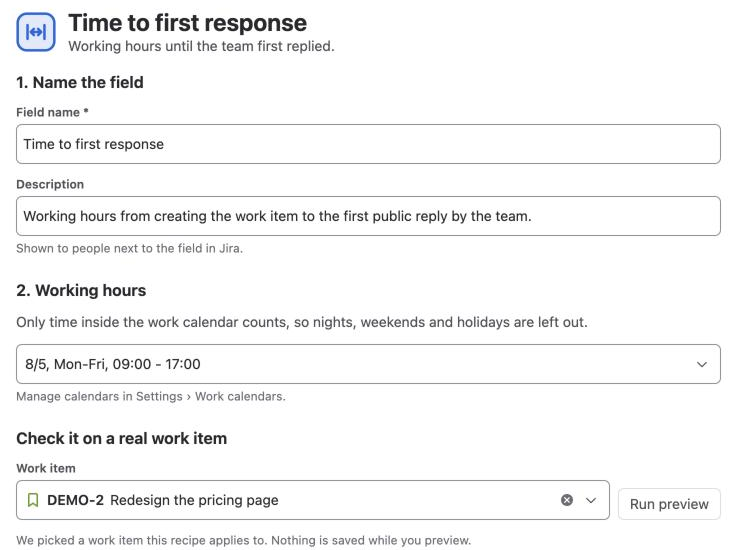
Select the Service and support category, then Time to first response. The recipe form opens.
-
Under Working hours, select the calendar you use for support hours.
-
Under Check it on a real work item, enter the key of a request, and select Run preview.
-
Select Create field. A page opens that says Time to first response is ready.
-
Under Fill in existing work items, select Fill last 90 days.
2. Create the other two fields
-
On the same page, select New field from recipe.
-
Select Waiting for the team, select the same calendar, and select Create field.
-
Select Fill last 90 days, then New field from recipe.
-
Select Last comment from, select Create field, and select Fill last 90 days.
You don't need a calendar for Last comment from, because it shows who wrote last, not a duration.
3. Color the waiting time
-
On the Fields tab, open the ••• menu of Waiting for the team, and select Edit configuration.
-
Under Display, select Traffic light: green, amber or red by two thresholds.
-
Keep Lower is better. Enter
4in Amber from and8in Red from. -
Select Save.
Result: A wait under 4 business hours shows green, 4 to 8 hours amber, and 8 hours or more red.
4. Build the queue filter
-
In Jira's search, run this JQL:
"Last comment from" = Customer AND statusCategory != Done ORDER BY "Waiting for the team" DESC -
Save the filter, for example as
Waiting for our reply. You can also use the same JQL for a queue in your service space. -
Show the Waiting for the team and Time to first response columns in the results.
The filter lists every open request where the customer wrote last, longest wait first.
Check that it works
-
Raise a test request through your portal.
-
Open it as an agent. Confirm that Time to first response counts and Last comment from shows
None. -
Reply publicly. Confirm that Time to first response stops and Last comment from shows
Team. -
Comment as the customer. Confirm that Last comment from shows
Customerand Waiting for the team starts counting.
When you open the work item, you always see the current wait. Lists and filters move forward every hour while Refresh time-based values every hour is on in Settings > Calculation, less often for waits longer than 7 working days. Outside support hours the wait stands still.
Related use cases
-
Last Comment From: internal notes and how the field decides.
-
Time Between: the presets behind both time fields.
-
Show a traffic light or progress bar: thresholds and colors in lists.
-
How values stay current: when lists and filters catch up with the work item.