Find work that keeps coming back
Count how often your work comes back after Done or after review, and see the worst cases on a dashboard.
Problem: You know some work bounces between Done, review and In Progress, but Jira doesn't count it. Finding those work items means reading their history one by one.
Solution: You create two Transition Count fields from recipes, Reopen count and Times sent back to In Progress. They count the status changes in each work item's history. A traffic light and a dashboard then show you where rework piles up.
What you'll need
-
FieldCraft, installed, with an active license.
-
The Administer Jira global permission, to create the fields.
-
Workflows where work can move back from a Done status, or from a review or QA status to In Progress.
What your team will experience
-
A tester moves a story from review back to In Progress. Times sent back to In Progress goes up by one.
-
A bug comes back after the team finished it. Reopen count shows
1, in amber. -
As the QA lead, you open the dashboard and see the work that came back most often at the top.
-
In the retrospective, the team lead picks the top work items to talk about.
Set it up
1. Create Reopen count
-
Go to Settings (⚙) > Marketplace apps > FieldCraft: Custom Fields. The FieldCraft admin page opens.
-
On the Fields tab, select New field from recipe. The recipe gallery opens.
-
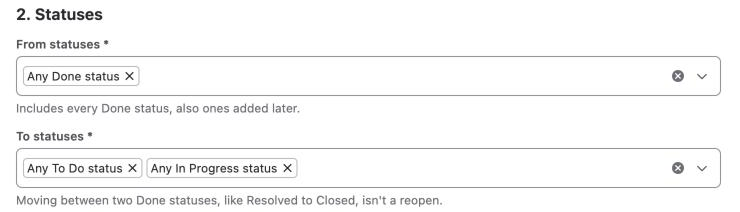
Select the Rework and flow category, then Reopen count. The recipe form opens.
-
Under Check it on a real work item, enter the key of a work item you know came back, and select Run preview.
-
Select Create field, then Fill last 90 days.
Older work items get their real counts, because the field reads each work item's status history.
2. Create Times sent back to In Progress
-
Select New field from recipe, then Times sent back to In Progress.
-
Under Statuses, check the review statuses the recipe found. Add any review, QA or testing status your teams use.
-
Select Create field, then Fill last 90 days.
If the recipe finds no review status, it asks you to pick one. Create field stays unavailable until you do.
3. Add a traffic light
-
On the Fields tab, open the ••• menu of Reopen count, and select Edit configuration.
-
Under Display, select Traffic light: green, amber or red by two thresholds.
-
Keep Lower is better. Enter
1in Amber from and2in Red from. -
Select Save.
Result: Work that was never reopened shows 0 in green. One reopen shows amber, and two or more show red.
Repeat the phase for Times sent back to In Progress if you want it colored too.
4. Build the dashboard
-
In Jira's search, run this JQL:
("Reopen count" > 0 OR "Times sent back to In Progress" > 0) AND updated >= -30d ORDER BY "Reopen count" DESC -
Save the filter, for example as
Rework, last 30 days. -
On your team's dashboard, add a Filter results gadget for the filter. Show both count columns.
In lists, you see the traffic light as a colored dot before each count.
Check that it works
-
Move a test work item to a Done status, then back to a To Do status.
-
Open the work item. Confirm that Reopen count shows
1in amber. -
Move the work item to a review status, then back to In Progress.
-
Confirm that Times sent back to In Progress shows
1.
Related use cases
-
Measure cycle time in working hours: see how long the work took, next to how often it came back.
-
Transition Count: count any move between statuses.
-
Show a traffic light or progress bar: thresholds, direction and colors.
-
Search and report with FieldCraft fields: JQL, columns and dashboards.