Get started with Script Master
In about 10 minutes you install Script Master, open it in Jira or Confluence, and run your first script on your own site's data.
Before you begin
- To install the app, you need to be a site admin, or a Jira admin or Confluence admin for the product you install it on.
- To open Script Master, you need the Administer Jira global permission in Jira, or Confluence administrator rights in Confluence.
- Script Master for Jira and Script Master for Confluence are separate apps with separate licenses. Install the one for each product you use.
Install Script Master
- In Jira or Confluence, select Apps > Explore more apps.
- Search for Script Master, then select the app for your product.
- Select Get app and follow the prompts.
Result: Script Master appears under Apps in your product's admin settings. You can also install it from its Marketplace listing: Script Master for Jira or Script Master for Confluence.
Open Script Master
Open Script Master from your product's admin settings, as Open Script Master describes step by step for Jira and Confluence.
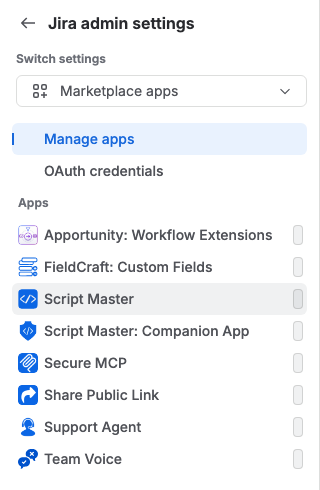
Script Master opens on the Overview tab. On a new site it shows Welcome to Script Master and a tile for each thing you can build.
The tabs across the top lead to each module, such as Script Console, Fragments and Web Triggers. Using Script Master lists every tab.
Open the Get started page
The Get started page shows what can run on your site, what you can build, and an example script you can run on the spot.
-
On the Overview tab, under Welcome to Script Master, select See the Get started page.
The welcome shows only while nothing has been created on the site. You can also open the page from Connected apps in Atlassian Administration: open the ••• menu on Script Master's row and select Get Started.
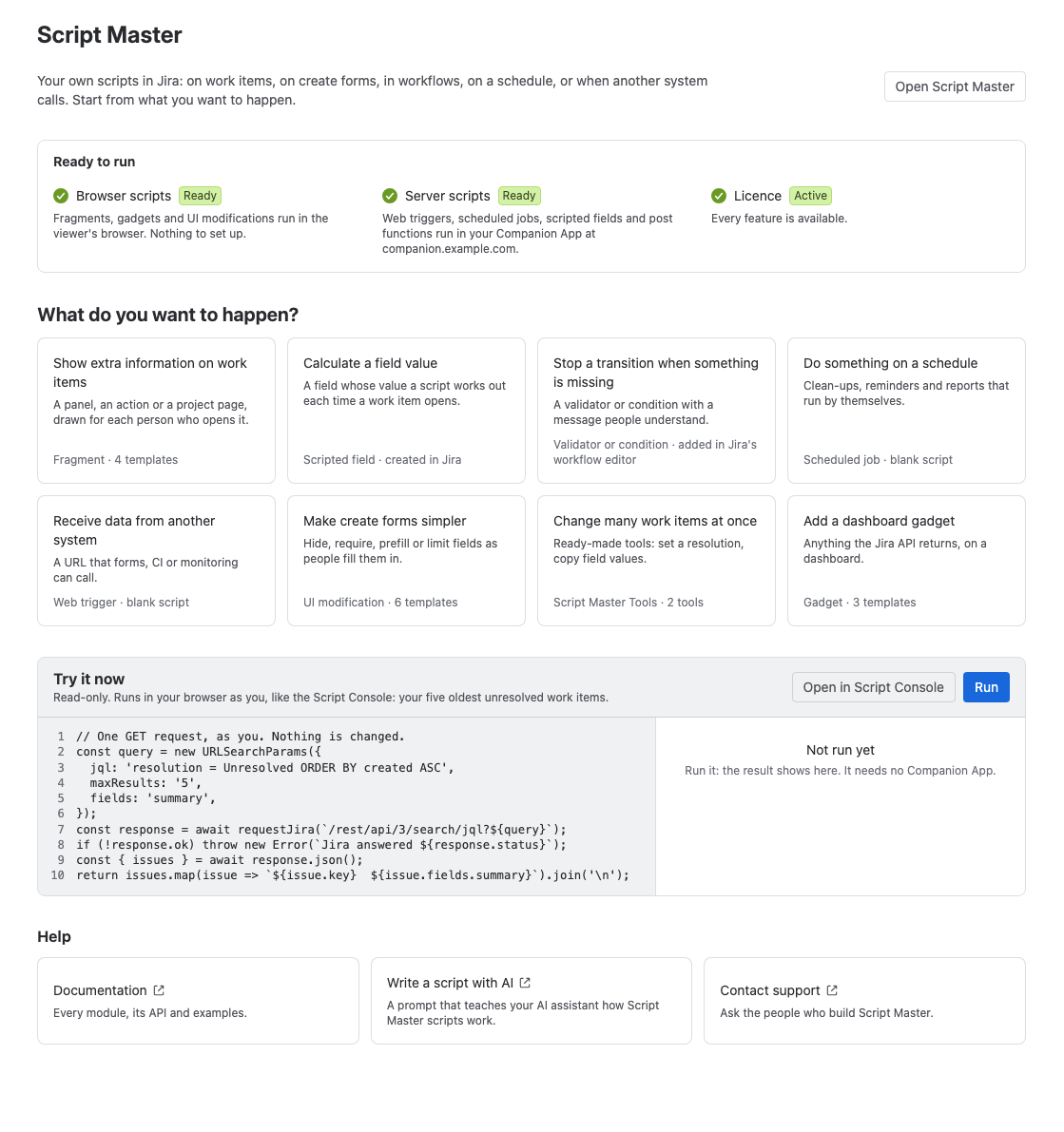
Result: The page opens with four sections: Ready to run, What do you want to happen?, Try it now and Help. Open Script Master at the top takes you back to the admin page.
Ready to run
This card tells you what can run on your site right now.
| Row | What it tells you |
|---|---|
| Browser scripts | Always Ready. Fragments, gadgets and UI modifications in Jira, and fragments and macros in Confluence, run in the viewer's browser with nothing to set up. |
| Server scripts | Ready when your Companion App answers. Otherwise Not set up or No answer, with a Set up a Companion App or Check settings button. Until it's ready, web triggers and scheduled jobs don't run, and in Jira scripted fields and post functions don't either. |
| Licence | Active, Trial with the date the trial ends, or Not active. Without an active license, scripts don't run in the console and you can't create items. |
Server scripts run in the Companion App, a small Forge app you deploy yourself. See The Companion App.
What do you want to happen?
Each tile names a goal and the module that does it. A tile marked Needs a Companion App still opens, so you can write the script before the Companion App is set up.
- Jira
- Confluence
| Tile | Module | What it opens |
|---|---|---|
| Show extra information on work items | Fragment | A choice of 4 templates, or a blank fragment |
| Calculate a field value | Scripted field | The Custom Fields tab |
| Stop a transition when something is missing | Validator or condition | The Workflows tab |
| Do something on a schedule | Scheduled job | An empty scheduled job editor |
| Receive data from another system | Web trigger | An empty web trigger editor |
| Make create forms simpler | UI modification | A choice of 6 templates, or a blank UI modification |
| Change many work items at once | Script Master Tools | The Script Master Tools page |
| Add a dashboard gadget | Gadget | A choice of 3 templates, or a blank gadget |
| Tile | Module | What it opens |
|---|---|---|
| Show extra information on pages | Fragment | A choice of 5 templates, or a blank fragment |
| Add a macro people can put on pages | Macro | A choice of 1 template, or a blank macro |
| Do something on a schedule | Scheduled job | An empty scheduled job editor |
| Receive data from another system | Web trigger | An empty web trigger editor |
| Change many pages at once | Script Master Tools | The Script Master Tools page |
A template opens in the editor on the Script Master admin page, filled in and ready to change. Nothing is saved until you select Save.
Run your first script
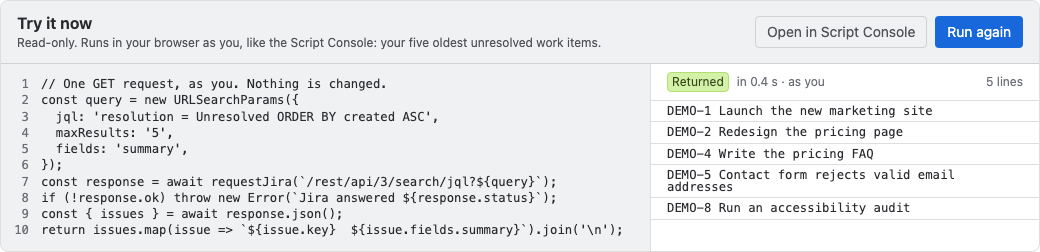
The Try it now example only reads data. It runs in your browser as you, like the Script Console, so it needs no Companion App. In Jira it lists your five oldest unresolved work items. In Confluence it lists the five pages changed most recently.
-
On the Get started page, under Try it now, select Run. The result appears beside the script, marked Returned.
-
Select Open in Script Console. The Script Console opens with the example in its editor.
-
Change the script. For example, set
maxResultsto'10'in Jira, orlimitto'10'in Confluence. -
Select Run.
Result: The Script Console shows the longer list under Result. You've run a script against your own site's data. Both Run buttons need an active license.
Next steps
- Use cases: five complete setups, such as a panel on work items or a nightly job.
- Script Console: run one-off scripts and bulk changes as yourself.
- The Companion App: set it up so that web triggers, scheduled jobs, scripted fields and post functions run.
- Using Script Master: the tabs, the Overview, version history and run history.