Code editor
Every script in Script Master is written in the same code editor. It's Monaco, the editor inside Visual Studio Code, so completion, search and multiple cursors work as they do there.
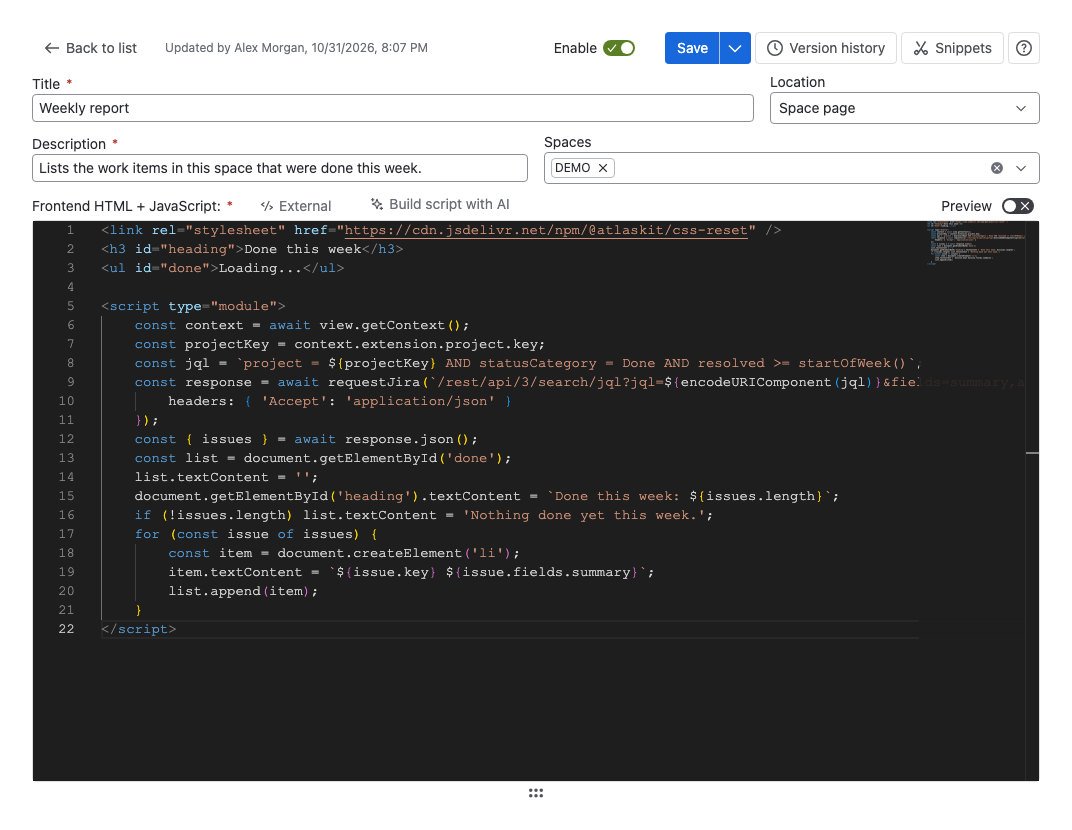
Where you use it
| Module | Language |
|---|---|
| Script Console, web triggers, scheduled jobs | JavaScript |
| Fragments, gadgets (Jira), macros (Confluence) | HTML, with JavaScript in script tags |
| UI modification scripts (Jira) | JavaScript |
| Scripted custom fields, post functions (Jira) | JavaScript |
| Validators and conditions (Jira) | Jira expressions |
What the editor does
- Completion. As you type, the editor suggests words and members. Press the suggestion shortcut to open the list yourself.
- Hover information. Hover over a function or value to see what it is.
- Syntax errors. In JavaScript editors, mistakes such as a missing bracket are underlined as you type. HTML editors color the code but don't check the scripts inside it.
- Command palette. Press
F1to see every editor command and its shortcut. - Resize. Drag the handle under the editor to make it taller.
UI modification scripts and the workflow rule editors add their own help, such as completion for the fields and objects they can use. See UI Modifications and Workflow extensions.
Tools around the editor
Above the editor, most modules have these buttons:
- Snippets opens the Snippets Library: short examples of single features, and complete use cases. Filter them by name or description, and copy one into your code.
- Version history opens the saved versions of the item. See Version history.
- External connects a file you edit in another editor, such as Visual Studio Code. In the Script Console the button is Use External Editor. See Edit in an external editor.
- Build script with AI opens Claude, ChatGPT or Gemini with a prompt about this module's API. See Build a script with AI.
Keyboard shortcuts
| Action | Windows and Linux | macOS |
|---|---|---|
| Save the item | Ctrl+S | Cmd+S |
| Run the script (Script Console) | Ctrl+Shift+R | Cmd+Shift+R |
| Show the command palette | F1 | F1 |
| Open suggestions | Ctrl+Space | Ctrl+Space |
| Comment or uncomment lines | Ctrl+/ | Cmd+/ |
| Find | Ctrl+F | Cmd+F |
| Replace | Ctrl+H | Cmd+Option+F |
| Add a cursor above or below | Ctrl+Alt+Up or Ctrl+Alt+Down (Linux: Shift+Alt+Up or Shift+Alt+Down) | Cmd+Option+Up or Cmd+Option+Down |
| Format the code | Shift+Alt+F (Linux: Ctrl+Shift+I) | Shift+Option+F |
Your browser or operating system can take over a shortcut before the editor sees it.
The save and run shortcuts work while the editor has focus. In the Script Console, the save shortcut keeps the script in this browser instead of saving it to the site. The scheduled job editor doesn't save with the shortcut; select Save instead.
Related
- Edit in an external editor: write code in your own editor and see it in Script Master.
- Build a script with AI: start from a prompt about each module's API.
- Version history: compare and restore saved versions.
- Navigate the admin page: what happens to unsaved changes.