Fragments
A fragment is a block of HTML, CSS and JavaScript that Script Master shows in a place you choose in Jira or Confluence. That place can be a panel on a work item, an action, a page in a space, or an item under a page title. Use fragments to show data that Jira or Confluence doesn't show, or to give people a button that does a job for them.
Applies to: Script Master for Jira and Script Master for Confluence · Cloud
How it works
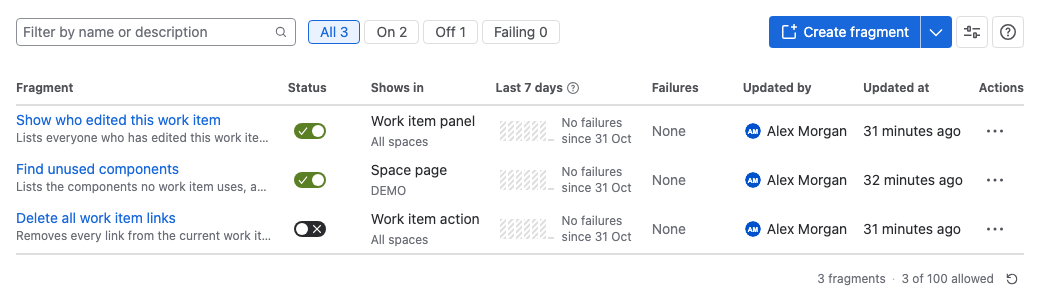
You write fragments in the Fragments tab of Script Master. Each fragment has one location and, if you want, a list of spaces. Once you turn it on, it shows in that location in those spaces, or in every space when you pick none.
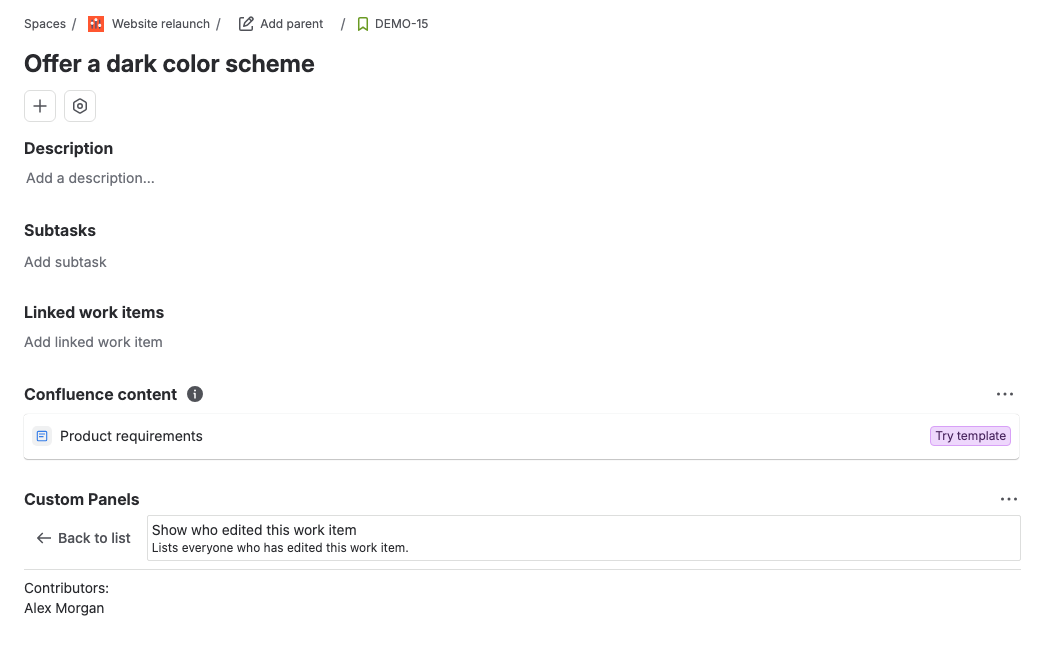
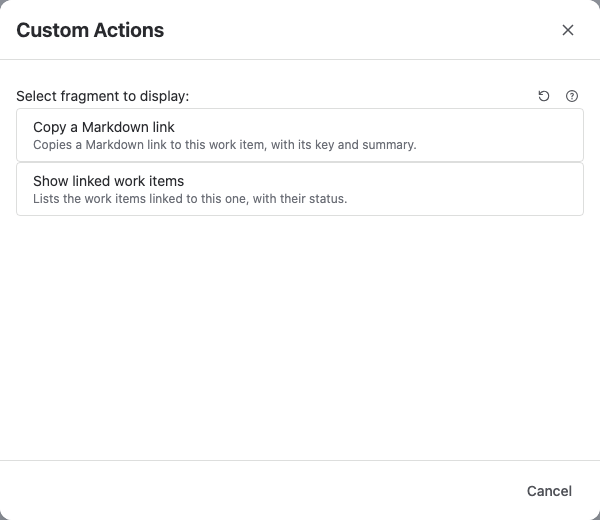
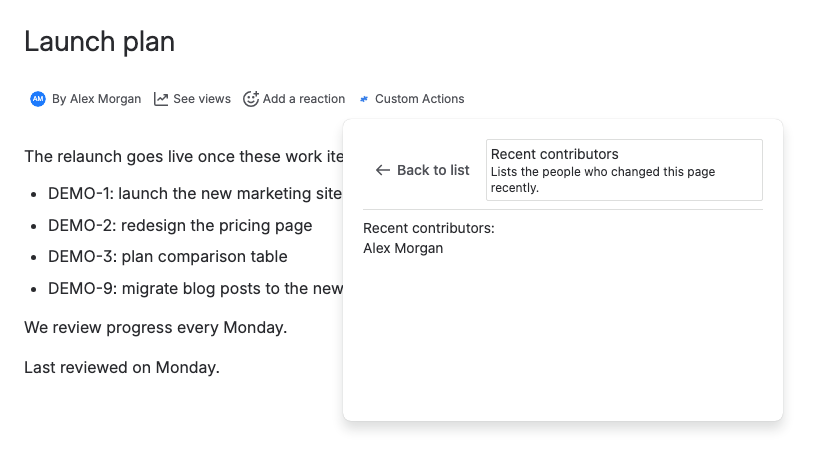
Each location lists the fragments that apply there, under Select fragment to display:. When someone selects one, the fragment opens with Back to list above it. Where no fragment applies, the location says that your admin hasn't configured any custom fragments for it.
The code runs in the viewer's browser. Its calls to Jira or Confluence run as that person, with their permissions, so two people can see different data in the same fragment. Code can also load scripts, styles and frames from other sites and call external URLs. Data goes wherever your code sends it.
Where fragments can show
The Location field sets where a fragment shows. The first column uses the field's names. The second says where people find it.
In Jira
| Location | Where people find it |
|---|---|
| Work item panel | A Custom Panels panel on the work item. People add it under the summary with View app actions > Custom Panels |
| Work item action | The work item's ••• menu > Custom Actions. The fragment opens in a dialog |
| Space page | Custom Pages in the space's navigation |
| Space settings page | Custom Settings in the space settings |
| Queue page | Custom Pages in the queues navigation of a service space |
In Confluence
| Location | Where people find it |
|---|---|
| Page action | The page's ••• menu > Apps > Custom Actions, or Option+Shift+A. The fragment opens in a dialog |
| Page byline item | Custom Actions in the byline under the page title |
| Space page | Custom Pages in the space sidebar |
| Space settings page | Custom Settings in the space settings |
When to use it
- Use a fragment for content that belongs to a work item, a page or a space, which people open when they need it.
- Use a gadget for content on a Jira dashboard, or a macro for content inside a Confluence page.
- Use a web trigger or a scheduled job for work that runs on the server, without anyone opening a page.
Limits
- A site can have up to 100 fragments. At the limit, Script Master says "You've reached 100 fragments". Delete one you no longer need to create another.
- People see only the fragments you switch on. New fragments, duplicates, imports and fragments from a template all start switched off.
- Creating a fragment needs a valid Script Master license.
Set up fragments
- Create a fragment: start from scratch or from a template, pick the location and spaces, and turn it on.
- Preview your code: watch a fragment, gadget or macro run with real data as you type.
- Write fragment code: the globals, the context each location passes, sizing and dark theme.
Examples
- Jira: Show who edited a work item: a work item panel that lists everyone who changed the work item.
- Jira: Find and delete unused components: a space settings page that lists components with no work items and deletes the ones you pick.
- Confluence: Show recent page contributors: a byline item that lists the people who changed the page.
- Show Jira work item statuses on a Confluence page: call Jira from a Confluence fragment through a Jira web trigger.
The editor's Snippets library has more examples for each product.
Related
- Failures: what happens when a fragment's code fails, and how to clear the record.
- Version history: compare and restore earlier versions of a fragment.
- Import, export and duplicate: copy a fragment to another site.
- Code editor: editor shortcuts, the external editor and building code with AI.