Script Console
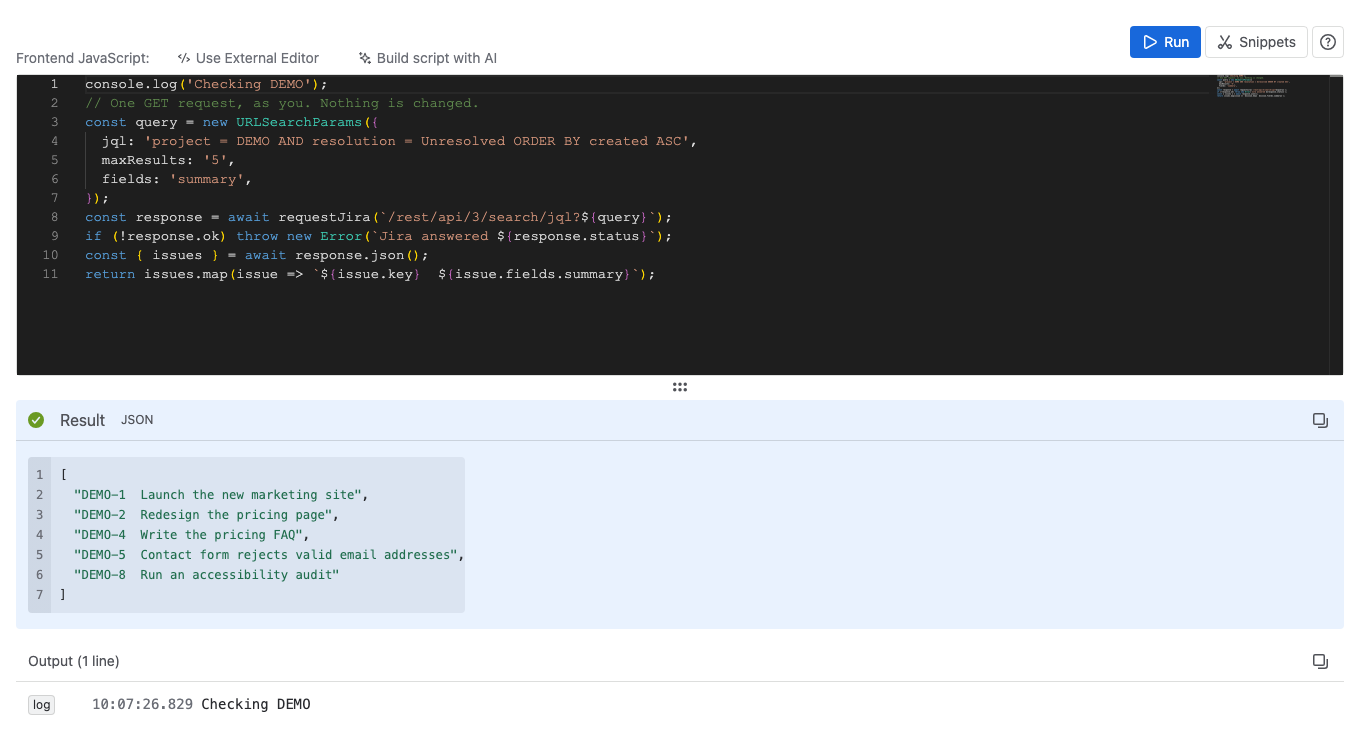
The Script Console runs a JavaScript script once, on the spot. Use it to read data or change many items through the Jira or Confluence REST API.
Applies to: Script Master for Jira and Script Master for Confluence · Cloud
Admins use it for one-off work. List what a query returns, try a REST call before it goes into a web trigger, or give many filters a new owner at once.
How it works
The script runs in your browser, as you. It can read and change only what your own Jira or Confluence permissions allow. The Script Console has no option to run a script as the app.
The Script Console doesn't need the Companion App. If your script must run as the app, put it in a scheduled job or a web trigger. The same goes for scripts that run on a schedule or when another system calls them.
Your script is the body of an async function, so await works at the top level. These names are ready to use, with no import:
| Name | Jira | Confluence | What it does |
|---|---|---|---|
requestJira | Yes | Not supported | Calls the Jira REST API as you |
requestConfluence | Not supported | Yes | Calls the Confluence REST API as you |
view | Yes | Yes | The Forge view object, for example view.getContext() |
showFlag | Yes | Yes | Shows a flag in the product |
context | Yes | Yes | The Forge context of the admin page |
fetch | Yes | Yes | The browser's fetch, for calls to other systems |
console | Yes | Yes | Its log, info, warn and error lines appear under Output |
The value your script returns appears under Result. Script Console output explains the result, the output lines and errors. For view, showFlag and the request methods, see Forge bridge API for browser scripts.
When to use it
- Use the Script Console for a task you run once and watch.
- Use a scheduled job for the same task every day or every week.
- Use a web trigger when another system or a Jira Automation flow starts the work.
Limitations
- Running a script needs an active Script Master license. Without one, Run shows This feature requires a valid license.
- The script runs in your browser, so it stops if you leave the page.
- The editor keeps one script, in this browser only. Keep scripts you need again in your own files, a web trigger or a scheduled job.
- A run keeps up to 100 output lines of up to 2,048 characters each. See Output limits.
Tasks
- Run a script: write or paste a script, run it, and keep it in your browser.
- Use the Snippets library: start from a ready-made script.
- Script Console output: what the Result, Output and Error panels show.
Examples
These examples work as they are once you fill in their settings at the top.
Jira
- Bulk clone work items: copy the work items a JQL query returns.
- Change the owner of multiple filters: give a list of filters to another user.
- Create a work item: create one work item through the REST API.
Confluence
- Purge trashed pages from several spaces: empty the trash of the spaces you list.
Related
- Code editor: editor features, shortcuts and the external editor.
- Script Console AI prompt: the API reference to give an AI assistant.
- Web Triggers: run a script when another system calls a URL.