Macros
A macro is a block of HTML, CSS and JavaScript that page editors insert into Confluence pages. Use macros to show information the page itself can't hold, such as live data from Confluence or another service, or to act on the page when someone opens it.
Applies to: Script Master for Confluence · Cloud. Jira has gadgets instead.
How it works
You write macros in the Macros tab of Script Master. Once you turn one on, page editors can use it:
- They insert Confluence's Custom Macro into a page.
- In Macro Configuration, they pick one of your macros, and can add a Macro Body and a Maximum height (px).
The code runs in the viewer's browser each time the page loads. Its calls to Confluence run as the person viewing the page, with their permissions. Code can also call external services, and data goes wherever your code sends it.
The macro body
The Macro Body is free text a page editor types for one placement of the macro. Your code reads it from context.extension.config.macroBody, so one macro can serve many pages with different input. The Add labels template, for example, reads a comma-separated list of labels from it.
The body can be missing: on a macro whose editor left it empty, and always in the live preview. The preview never passes a body, so a template can't act on a real page with sample input. Write your code so it handles a missing body:
const context = await view.getContext();
const macroBody = context.extension.config?.macroBody ?? '';
if (!macroBody) {
    console.log('No Macro Body: nothing to do.');
}
To test code that needs a body, insert the macro on a test page and type the body there.
Context fields
Besides the globals every fragment gets (see Write fragment code), a macro's context.extension has:
| Field | What it holds |
|---|---|
content.id, content.type | The page the macro is on |
space.id, space.key | The page's space |
config.macroId | The Script Master macro the editor picked |
config.macroBody | The Macro Body, when there is one |
config.maxHeight | The Maximum height (px), when there is one |
Turning a macro off or deleting it
| You… | What pages show |
|---|---|
| Turn a macro off | Pages that use it show Macro disabled: "This macro has been disabled by an administrator and is no longer available." Editors can't pick it |
| Turn it on again | Pages that use it show it again, and editors can pick it |
| Delete a macro | Pages that use it show a Macro error in its place |
Deleting a macro also deletes its failure record and version history. It can't be undone.
Limits
- A site can have up to 100 macros. At the limit, Script Master says "You've reached 100 macros".
- Creating a macro needs a valid Script Master license.
- Maximum height (px) takes a whole number from 100 to 10,000. Leave it blank to fit the content.
Set up macros
- Create a macro: write the macro, check it on a page and turn it on.
- Add a macro to a page: what page editors do to show your macro.
Examples
- Add labels: add the labels listed in the macro body to the page whenever someone opens it.
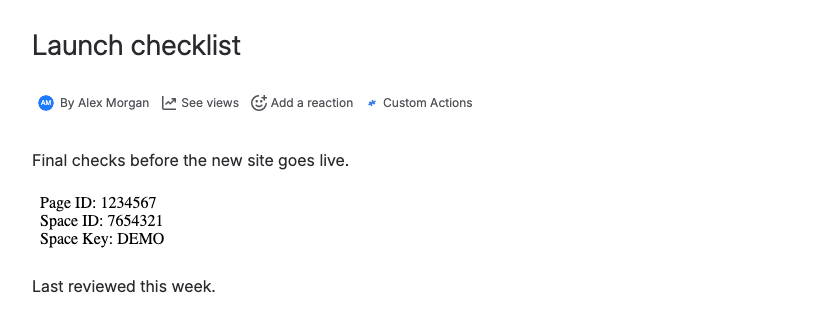
The editor's Snippets library has more examples, such as showing the current page and space IDs.
Related
- Preview your code: how the live preview works in every editor.
- Failures: what viewers and admins see when a macro fails.
- Version history: compare and restore earlier versions of a macro.