Using Script Master
This section covers the Script Master admin page and the tools every module shares, such as version history and Import. You need to be a Jira admin or Confluence admin to open the page.
Open Script Master
Before you begin, you need the Administer Jira global permission in Jira, or Confluence administrator rights in Confluence.
- Jira
- Confluence
-
In Jira, select Settings > Marketplace apps.
-
In the sidebar, under Apps, select Script Master. If the sidebar is collapsed, select Expand sidebar first.
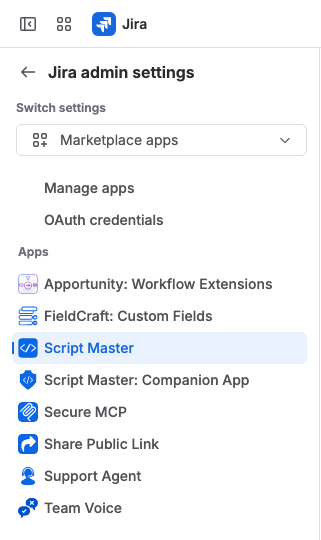
Result: Script Master opens on the Overview tab.
-
In Confluence, select Confluence administration (the gear icon at the top right).
-
In the sidebar, under Settings, expand Apps and select Script Master.
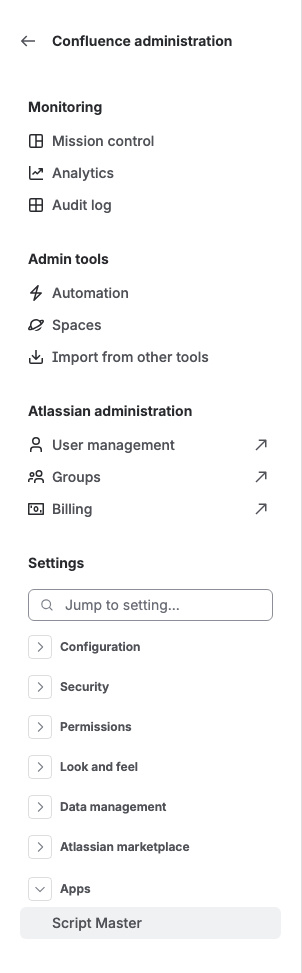
Result: Script Master opens on the Overview tab.
You can also reach the same page from Connected apps in Atlassian Administration: open the ••• menu on the Script Master for Jira or Script Master for Confluence row and select Configure. Get Started there opens the Get started page, whose goals lead into the admin page.
Tabs in Jira and Confluence
The admin page has one tab per module. Some modules exist in one product only.
| Tab | Jira | Confluence |
|---|---|---|
| Overview | Yes | Yes |
| Script Console | Yes | Yes |
| Fragments | Yes | Yes |
| Gadgets | Yes | Not available |
| Macros | Not available | Yes |
| UI Modifications | Yes | Not available |
| Custom Fields | Yes | Not available |
| Workflows | Yes | Not available |
| Web Triggers | Yes | Yes |
| Scheduled Jobs | Yes | Yes |
| Tools | Yes | Yes |
| Settings | Yes | Yes |
Pages in this section
- The Overview tab: what needs attention, what changed, and what the site has.
- Navigate the admin page: tabs, the More menu, page addresses, links into an item, and unsaved changes.
- Version history: see every saved version of an item, compare two, and restore one.
- Run history and activity: the last runs of web triggers, scheduled jobs and post functions, and the Last 7 days column.
- Failures: what people see when a fragment, gadget or macro fails, and where you see it.
- Import, export and duplicate: copy items between sites or within one.
- Audit metadata: who created and last changed each item, and when.
- Settings: the Companion App connection and the error reports opt-out.
The code editor that every module uses has its own section: Code editor.