Version history
Every save of a script in Script Master becomes a version. Version history shows who changed what and when, compares any two versions, and restores an old one. A restore adds a new version, so the history is never rewritten.
What is versioned
Each version keeps the item's code and its settings.
| Item | Product | Code | Settings kept |
|---|---|---|---|
| Fragment | Jira, Confluence | The HTML and JavaScript | Title, description, location, spaces |
| Gadget | Jira | The HTML and JavaScript | Title, description |
| Macro | Confluence | The HTML and JavaScript | Title, description |
| Web trigger | Jira, Confluence | The script | Title |
| Scheduled job | Jira, Confluence | The script | Title, description, schedule |
| UI modification | Jira | The rules or the script | Name, description, scope |
| Scripted custom field | Jira | The script of one field context | Not applicable |
| Post function, validator, condition | Jira | The script or expression, and the rules a validator or condition was built with | Not applicable |
A save that changes neither code nor settings adds no version. Turning an item on or off adds no version either, and a restore never turns an item on or off.
Before you begin
- You need the Administer Jira global permission, or Confluence administrator rights.
- The item must be saved at least once. Before that, Version history is unavailable, with the tooltip Save it first: every save becomes a version.
Open the version history
Open it from any of these places:
- In the item's editor, select Version history, next to Save.
- In the module's list, open the row's Actions menu and select Version history….
- On the Overview, select a row under Recently changed.
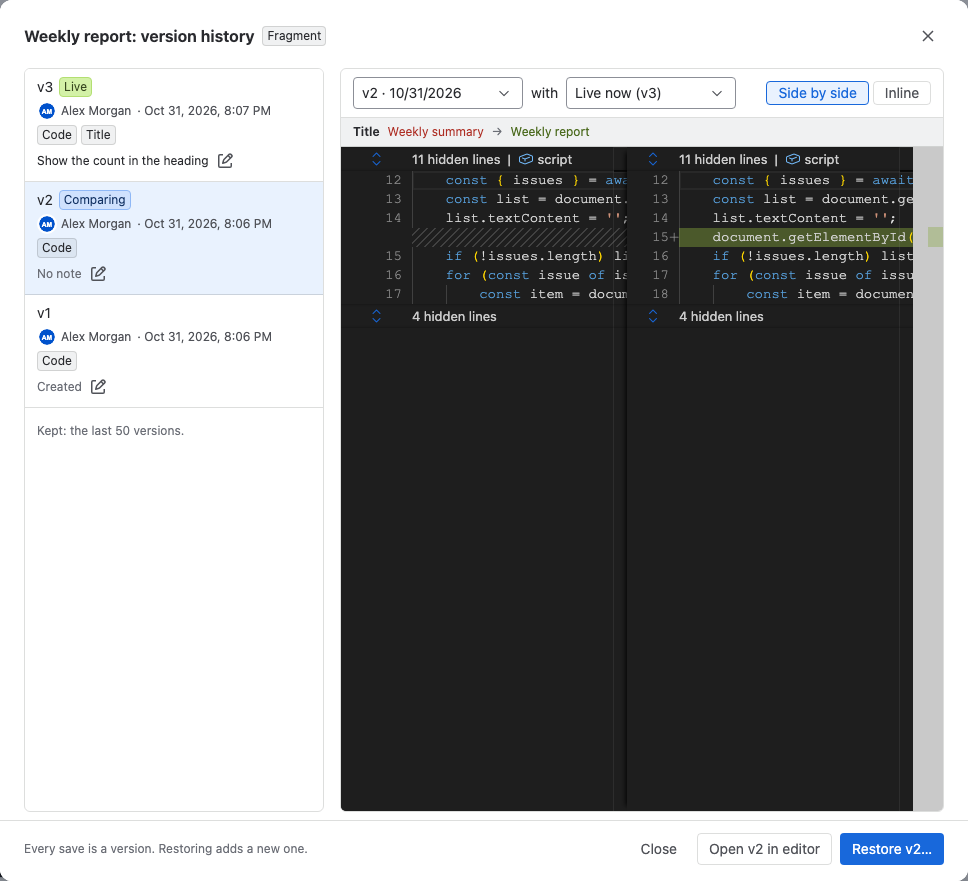
The version history opens above the page. On the left is the list of versions, newest first. Each row shows:
- The version number, with Live on the version in use.
- Who saved it and when.
- What changed, such as Code, Title or Schedule.
- The note, or No note. A new item's first version has the note Created.
- For fragments, gadgets, macros and UI modifications, how often the code failed: 3 failures since on the live version, 2 failures while live on older ones.
The list ends with Kept: the last 50 versions.
Compare two versions
-
Select a version in the list. It's marked Comparing.
-
In the second picker, choose what to compare it with. The default is Live now.
The settings that differ show above the code, with the old value and the new one. The code shows below with changes highlighted.
-
Select Side by side or Inline to change how the code is shown.
Result: You see every change between the two versions. Unchanged lines are folded away.
UI modifications built with rules are compared as the rules in plain words, one rule per line.
Restore a version
-
Select the version you want back.
-
Select Restore v3…, with the number of that version. A confirmation appears at the bottom.
-
If the settings differ, select Also restore v3's settings to bring back the title, description, location, spaces or schedule too. Without it, only the code goes back.
-
Optionally, change the note. It starts as
Restored v3. -
Select Restore as v15, with the next version number.
warningIf the editor has unsaved changes, restoring discards them and reloads the editor.
Result: The old code goes live as a new version, and the editor reloads. A message names the item, for example Restored "Weekly report" v3 as v15, and offers Undo. Undo restores the version that was live before, which adds one more version.
You can't restore the live version. A version with the same code and settings as the live one is refused with v3 is the same as the live version.
Open a version in the editor
To start from an old version and change it before saving, select Open v3 in editor. The editor gets that version's code, unsaved. Nothing is saved until you select Save, which adds a new version.
Open in editor appears only when you open the history from an editor, not from a list row.
Add a note to a version
A note says what changed and why. It can be up to 200 characters.
- To add a note while saving, select the arrow next to Save, then Save with note…. Type the note and select Save.
- To add or change a note later, select the pencil next to a version's note in the history.
Scripted fields and workflow rules in Jira
Scripted custom fields and workflow rules live in Jira, so their history works a little differently.
- Scripted custom fields
- Workflow rules
- Open the history with Version history in the field context's script editor.
- Each save in that editor adds a version, and restore works as described above.
- When someone changes the script elsewhere, for example through Jira's REST API, the change is recorded as a version by Jira, labeled Changed outside Script Master.
- When the field or the context is deleted in Jira, its history is deleted too. A field in Jira's trash keeps its history.
- Open the history with Version history in the rule's editor in the workflow editor.
- A version is recorded when you select Add or Update for the rule in Jira's workflow editor. Script Master can't tell whether the workflow draft is published, so these versions are labeled Workflow editor, may be a draft.
- Restore puts the old code into the rule's editor: Put v3 in the editor. Select Update in Jira to save it, which records a new version.
- When no published workflow contains a rule any more, Script Master deletes its history 1 to 2 weeks later. A rule edited in the last 30 days keeps its history until its last version is 30 days old.
Items saved before version history
An item last saved before version history existed shows No versions yet. Its next save keeps what is live as v1, labeled Before version history, and adds the new version as v2.
Changes made outside Script Master
When what is live differs from the last saved version, the history shows What is live differs from v9. For a workflow rule, this happens when the workflow was copied or edited elsewhere. The next save in Script Master records the change.
Limits
- Each item keeps its last 50 versions. The oldest is removed when a new one is saved.
- Code can be up to 230 KiB. A larger script can't be saved.
- Deleting an item deletes its version history. This can't be undone.
- A duplicate starts its own history at v1, with the note
Duplicated from "Weekly report". An import starts at v1 with the noteImported. An export doesn't include the history. - In team-managed workflows, a space admin who isn't a Jira admin can edit a rule, but no version is recorded and the history doesn't open.
Related
- Import, export and duplicate: copy an item, which starts a new history.
- Audit metadata: who created and last changed each item.
- Failures: how failure counts are recorded per version.
- The Overview tab: the latest saves across all modules.