Test or run a job now
Try a scheduled job's code before you save it, or start a saved job at once instead of waiting for its schedule.
Applies to: Script Master for Jira and Script Master for Confluence · Cloud
| Compared | Test | Run |
|---|---|---|
| Where | Under the editor | The job's Actions menu in the list |
| What runs | The code in the editor, saved or not | The saved job |
| Result | Shown at once, under the editor | Recorded in the job's History when it finishes |
| Time limit | 24 seconds | Longer than a test |
| Works while the job is off | Yes | Yes |
Both run the script for real, as the app, through the Companion App. A job that changes work items or pages changes them during a test too.
Before you begin
- Jira or Confluence permission: Jira admin (the Administer Jira global permission) or Confluence admin.
- App permission: an active Script Master license.
- A configured Companion App. See Set up the Companion App.
Test the code in the editor
-
On the Scheduled Jobs tab, open the job, or start a new one with Create scheduled job.
The example below is the
Weekly overdue reportjob from Create a scheduled job, with its script in Backend JavaScript. -
Under the editor, turn on Test this Scheduled Job.
-
Select Test.
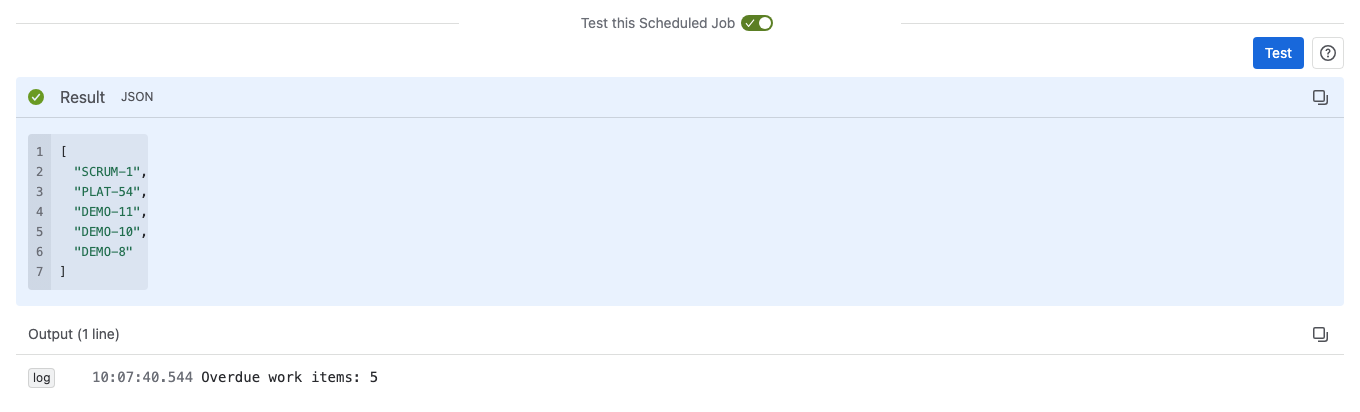
Result: Result shows what the script returned, and Output lists the lines it printed. For the example job, Result shows the keys of the overdue work items as a JSON array, one per line, and Output has one line that starts Overdue work items: with the count. If the script failed, a red Error panel shows the error instead of Result.
A test that takes longer than 24 seconds stops with FUNCTION_TIME_OUT: The function timed out during the execution. A scheduled run has a longer limit, so the job may still work on its schedule. Shorter, smaller steps make both work.
Tests aren't recorded in History or counted in Last 7 days.
Run a saved job now
- On the Scheduled Jobs tab, find the job in the list.
- Select Actions (•••) on its row, then Run.
Result: The flag "Weekly overdue report" started appears, with the job's title. The job runs in the background. When it finishes, select Refresh above the list to see the new run under History.
Run starts the saved version of the job, even while the job is switched off. Unsaved changes in the editor aren't part of it.
Related
- Check a job's runs and failures: read the details of each run.
- Create a scheduled job: save the job and turn it on.
- Script Console: run a script as yourself, in the browser.