Call a web trigger from Jira Automation
Run a Script Master script whenever something happens in Jira, by letting a Jira Automation flow call a web trigger. This example adds the label triaged to every new work item in a space.
Applies to: Script Master for Jira · Cloud
Script Master has no event listeners. Jira Automation already reacts to events such as Work item created, with JQL conditions and an audit log. Its Send web request action sends the work item's data to your web trigger, and the script does what Automation can't.
Before you begin
- Jira permission: Jira admin (the Administer Jira global permission) for Script Master, and permission to create automation flows in the space.
- App permission: an active Script Master license.
- A configured Companion App. See Set up the Companion App.
- A long random token. The flow sends it, and the script checks it.
Create the web trigger
-
In Script Master, select the Web Triggers tab, then Create web trigger.
-
In Title, enter
Label new work items. -
In Backend JavaScript, paste the script below. Replace
<your-access-token>with your token.if (request.headers['authorization']?.[0] !== 'Bearer <your-access-token>') {return { statusCode: 401, statusText: 'Unauthorized' };}if (!request.body) {return { statusCode: 400, statusText: 'No work item data' };}// The flow sends the work item as JSON: key, fields and moreconst workItem = JSON.parse(request.body);const response = await api.asApp().requestJira(route`/rest/api/3/issue/${workItem.key}`, {method: 'PUT',headers: { Accept: 'application/json', 'Content-Type': 'application/json' },body: JSON.stringify({ update: { labels: [{ add: 'triaged' }] } }),});if (!response.ok) {console.error(`Jira answered ${response.status} for ${workItem.key}`, await response.text());return { statusCode: 502, statusText: 'Jira update failed' };}return { statusCode: 200, statusText: 'OK' }; -
Turn on Enable, then select Save.
-
Select the copy icon next to Web Trigger URL: to copy the URL.

Create the automation flow
Jira Automation calls its rules flows.
-
In Jira, open the space's automation and select Create flow, then Create from scratch. See Jira automation triggers.
-
Choose the trigger Work item created.
-
Add the action Send web request.
-
In Web request URL, paste the web trigger URL.
-
Set HTTP method to
POST, and Web request body to Issue data (Automation format). -
Under Headers (optional), enter the Key
Authorizationand the ValueBearer <your-access-token>. Select Hidden, so the flow shows dots instead of your token.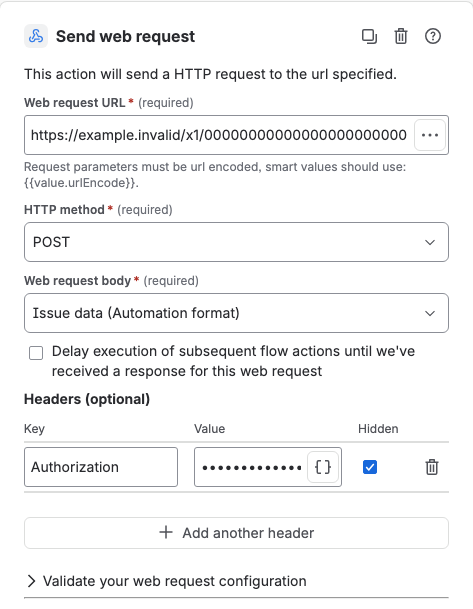
-
Select Save and enable.
| Placeholder | Description |
|---|---|
<your-access-token> | Your secret token. Use the same value in the script and in the flow's header. |
Result: Create a work item in the space. Shortly after, it has the label triaged.
Check what happened
- In Script Master, the web trigger's History column shows the call. Select its dot to read the response, the output lines and any error. See Run history.
- In Jira Automation, the flow's audit log shows whether the web request succeeded.
- Before you turn the flow on, you can try the script with Test a web trigger. Put a work item's data, as a JSON string, in the request's
body.
A web trigger runs as the app. Jira shows your Companion App as the one that added the label, not the user who created the work item.
When many work items change at once
Script Master accepts about 10 web trigger calls in 20 seconds, shared by all web triggers on the site. A burst, such as a bulk create or a CSV import, fires the flow for every work item, and calls over the limit get 429 Too Many Requests. The script doesn't run for those work items.
To catch them:
- Check the flow's audit log in Jira Automation. Failed web requests are listed there.
- Run the work again for the work items that failed, for example with a manual flow on a JQL search for work items without the label.
See Limits.
Use the same approach for other events
Pick another trigger, for example one for transitions or comments, and change what the script does. Return 200 when the work is done, and an error status, such as 502, when it isn't.
Confluence Automation can call a web trigger in Script Master for Confluence the same way.
Related
- Listeners: why Script Master uses Jira Automation for events.
- Require a token on a web trigger: more on the token check.
- Web trigger request and response: the
requestobject and the status codes. - Jira automation actions: Atlassian's reference for Send web request.