Show Jira work item statuses on a Confluence page
Show the live status of every Jira work item a Confluence page mentions, in the page byline under the title. A web trigger in Jira acts as a proxy, and a Confluence fragment calls it.
Applies to: Script Master for Jira and Script Master for Confluence · Cloud
Why a proxy is needed
Script Master for Jira and Script Master for Confluence are two separate Forge apps. A Confluence fragment gets requestConfluence, but no requestJira, and no setting changes that. See Jira and Confluence differences.
A web trigger in Jira can read Jira, and a Confluence fragment can call a URL. So the fragment sends the work item keys to a Jira web trigger, the web trigger looks them up as the app, and returns a short JSON answer. A shared token keeps unknown callers out.
Before you begin
- Script Master for Jira on your Jira site, and Script Master for Confluence on your Confluence site.
- Jira and Confluence permissions: Jira admin and Confluence admin.
- App permission: an active license for both apps.
- A configured Companion App for Jira, because web triggers need it. See Set up the Companion App. The Confluence fragment runs in the browser and doesn't need one.
- A long random token, for example from a password generator.
Create the proxy web trigger in Jira
-
In Script Master for Jira, select the Web Triggers tab, then Create web trigger.
-
In Title, enter
Confluence work item proxy. -
In Backend JavaScript, paste the script below. Replace
<your-access-token>with your token.const PROXY_TOKEN = '<your-access-token>';// Fragments run in Forge iframes on atlassian-dev.net, so the browser calls from thereconst origin = request.headers['origin']?.[0] ?? '';const cors = {'Access-Control-Allow-Origin': [origin],'Access-Control-Allow-Methods': ['POST, OPTIONS'],'Access-Control-Allow-Headers': ['Content-Type, X-SM-Proxy-Token'],'Access-Control-Max-Age': ['600'],};if (!origin.endsWith('.atlassian-dev.net')) {return { statusCode: 403, statusText: 'Forbidden' };}// 1. Preflight: the browser asks first, because of the custom headerif (request.method === 'OPTIONS') {return { statusCode: 204, headers: cors };}// 2. The token: the URL is public, so this check protects your Jira dataif (request.headers['x-sm-proxy-token']?.[0] !== PROXY_TOKEN) {console.warn(`Rejected a call from ${origin}: missing or wrong token`);return { statusCode: 401, statusText: 'Unauthorized', headers: cors };}if (request.method !== 'POST') {return { statusCode: 405, statusText: 'Method Not Allowed', headers: cors };}// 3. Accept only work item keys, at most 50, never a REST path or JQL from the callerlet keys;try {keys = JSON.parse(request.body).keys;} catch {return { statusCode: 400, statusText: 'Invalid JSON', headers: cors };}const KEY = /^[A-Z][A-Z0-9]*-\d+$/;keys = [...new Set(Array.isArray(keys) ? keys : [])].filter((k) => typeof k === 'string' && KEY.test(k)).slice(0, 50);const json = (statusCode, payload) => ({statusCode,headers: { ...cors, 'Content-Type': ['application/json'] },body: JSON.stringify(payload),});if (!keys.length) return json(200, { issues: [] });// 4. The only Jira call this web trigger makesconst response = await api.asApp().requestJira(route`/rest/api/3/search/jql`, {method: 'POST',headers: { Accept: 'application/json', 'Content-Type': 'application/json' },body: JSON.stringify({ jql: `key in (${keys.join(',')}) ORDER BY key ASC`, fields: ['summary', 'status'], maxResults: 50 }),});if (response.status !== 200) {console.error(`Jira search failed: ${response.status} ${response.statusText}`);return json(502, { error: 'Jira search failed' });}const data = await response.json();// 5. A narrow, fixed answer instead of the raw Jira responsereturn json(200, {issues: (data.issues ?? []).map((issue) => ({key: issue.key,summary: issue.fields.summary,status: issue.fields.status?.name ?? 'Unknown',category: issue.fields.status?.statusCategory?.key ?? 'undefined',})),}); -
Turn on Enable, then select Save.
-
Copy the URL next to Web Trigger URL:.
Create the fragment in Confluence
-
In Script Master for Confluence, select the Fragments tab, then Create fragment.
-
In Title, enter
Jira statuses. -
In Location, select Page byline item.
-
In Frontend HTML + JavaScript, paste the code below. Replace the URL and the token at the top.
<style>body { font-family: -apple-system, BlinkMacSystemFont, 'Segoe UI', Roboto, 'Helvetica Neue', sans-serif; }</style><div id="issues" style="font-size:12px;line-height:20px"></div><div id="errors" style="color:#ae2e24;font-size:12px"></div><script type="module">// Show errors in the fragment instead of failing silentlywindow.onerror = (e) => { document.getElementById('errors').textContent = e.toString(); };// Settingsconst PROXY_URL = '<web-trigger-url>';const PROXY_TOKEN = '<your-access-token>';const box = document.getElementById('issues');// 1. Read the current page: this stays inside Confluenceconst context = await view.getContext();const pageId = context.extension.content.id;const pageRes = await requestConfluence(`/wiki/api/v2/pages/${pageId}?body-format=storage`, {headers: { Accept: 'application/json' },});if (pageRes.status !== 200) throw new Error(`Cannot read the page: ${pageRes.statusText}`);const page = await pageRes.json();// 2. Find work item keys in the page bodyconst keys = [...new Set(page.body.storage.value.match(/\b[A-Z][A-Z0-9]*-\d+\b/g) ?? [])].slice(0, 50);if (!keys.length) {setHeight('0px'); // Nothing to show: hide the fragment} else {box.textContent = 'Loading Jira work items...';// 3. No requestJira here, so call the proxyconst res = await fetch(PROXY_URL, {method: 'POST',headers: { 'Content-Type': 'application/json', 'X-SM-Proxy-Token': PROXY_TOKEN },body: JSON.stringify({ keys }),});if (!res.ok) throw new Error(`The proxy answered ${res.status}`);const { issues } = await res.json();// 4. One lozenge per work item, colored by status categoryconst colors = {new: ['#dcdfe4', '#172b4d'],indeterminate: ['#cce0ff', '#0055cc'],done: ['#dcfff1', '#216e4e'],undefined: ['#dcdfe4', '#172b4d'],};box.textContent = '';for (const issue of issues) {const [bg, fg] = colors[issue.category] ?? colors.undefined;const chip = document.createElement('span');chip.style.cssText = `display:inline-block;margin:0 6px 4px 0;padding:2px 8px;border-radius:3px;background:${bg};color:${fg};font-weight:600;white-space:nowrap;`;chip.textContent = `${issue.key} · ${issue.status}`; // textContent: summaries are user inputchip.title = issue.summary;box.appendChild(chip);}if (!issues.length) setHeight('0px');}</script> -
Turn on Enable, then select Save.
| Placeholder | Description |
|---|---|
<your-access-token> | Your token. Use the same value in the web trigger and in the fragment. |
<web-trigger-url> | The URL you copied from the web trigger, including ?id= and the ID after it. |
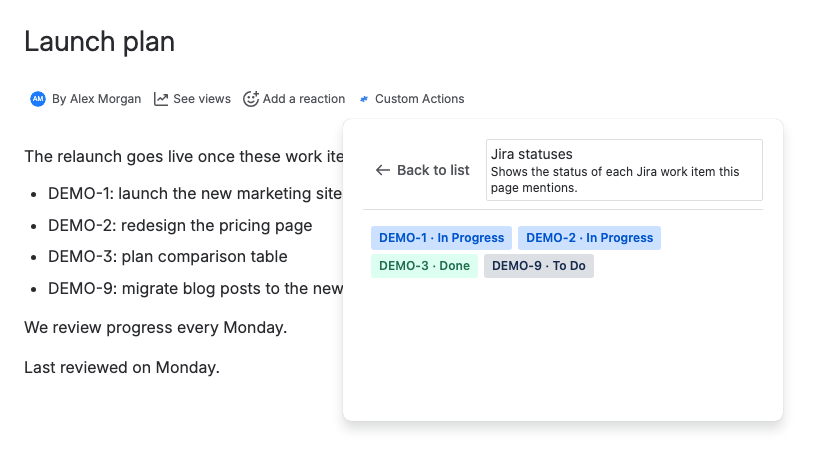
Result: Open a Confluence page that mentions a Jira work item key, for example DEMO-1. Under the page title, select Custom Actions, then Jira statuses. The popup shows each work item's key and status as a lozenge. Hover over one to see the summary.
What the token does and doesn't do
The fragment runs in the viewer's browser, so anyone who can view the page can find the token in the browser's network tools. The token keeps out callers who don't know it. It doesn't give per-user permissions.
- The web trigger runs as the app. A Confluence user with no access to a Jira space still sees what the proxy returns about it. Return only data that every Confluence user on the site may see.
- Keep the proxy narrow. This one accepts only work item keys, checks each one, caps them at 50, runs one fixed query and returns four fields. If a caller could send a REST path or a JQL query, the URL would become an open read API for your Jira site.
- Change the token when someone who could read it leaves. Update both scripts at the same time.
For Jira data that only some Confluence users may see, don't use this pattern. It can't check the viewer's own Jira permissions.
If it doesn't work
| Symptom | Cause and fix |
|---|---|
| The Web Triggers tab shows Action Required: This feature cannot function without companion app | The Companion App isn't set up for Jira. See Set up the Companion App. |
A CORS error in the browser console, and the fragment shows Failed to fetch | Script Master answered before your script ran: the web trigger is off or deleted, or the site's web triggers got more than 10 calls in 20 seconds. Those answers, and the 500 when your script throws, carry no CORS headers, so the browser blocks them. Turn on the web trigger's Enable switch, check the URL, and read the web trigger's History. If none of these applies, the origin check rejected the call: log request.headers['origin'] in the web trigger and compare it with what the browser sends. |
The proxy answers 401 | The tokens differ. The web trigger reads the header as x-sm-proxy-token, in lowercase, whatever case the fragment sends. |
| The fragment shows The proxy answered 502 | Jira rejected the search. The usual cause is text that looks like a key but isn't one, such as ISO-8601: Jira refuses a key in query with a key that doesn't exist. Narrow the key pattern in the fragment to your own space keys, for example /\bDEMO-\d+\b/g for the space DEMO. The web trigger's History shows the status Jira answered with. |
Related
- Web Triggers: how web triggers work, and their limits.
- Require a token on a web trigger: the token check on its own.
- Fragments: fragment locations and globals.
- Web trigger request and response: CORS headers go in the response's
headers.