Build a rule without code
Build a validator or condition from checks, such as "Assignee is set" or "The person doing it is the reporter". Script Master turns the checks into the Jira expression that Jira runs, so you don't write code.
Applies to: Script Master for Jira · Cloud, company-managed and team-managed spaces
Before you begin
- Jira permission: for a company-managed workflow, the Administer Jira global permission. For a team-managed space, a space admin can build the rule.
- The rule's editor is open in Jira's workflow editor. See Add a validator or Add a condition.
- A new rule opens with Build with rules selected. For a rule saved as an expression, select Build with rules, then Start over. The checks start empty and replace the expression.
Build the rule
-
Under Start from a template, select a template, or select Add a check.
-
In the check, choose what to check, for example Assignee, The person doing it or Subtasks.
-
Choose the comparison, for example is set or is one of.
-
Enter or pick the value, if the comparison needs one.
-
Next to Allow the transition when (validator) or Show the transition when (condition), choose all or any of the checks.
-
Optional: under Only check when, select Add a condition, for example work type or space to limit the rule to some work items.
-
For a validator, write the Message when it blocks.
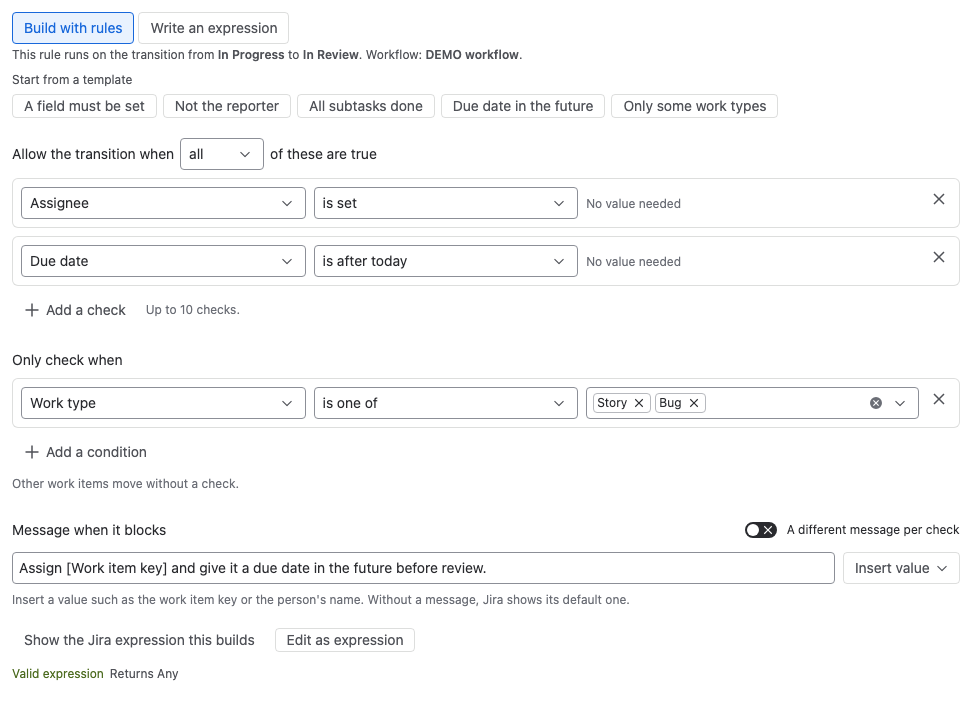
Result: Under the checks, Valid expression confirms that Jira accepts the rule. Test it before you save. See Test a rule on a work item.
Templates
| Template | Rule kind | What it sets up |
|---|---|---|
| A field must be set | Validator | Assignee is set, with a message |
| Not the reporter | Validator | The person doing it isn't the reporter, with a message |
| Due date in the future | Validator | Due date is after today, with a message |
| Only some groups | Condition | The person doing it is in groups you pick |
| Only some space roles | Condition | The person doing it has space roles you pick |
| Only the assignee | Condition | The person doing it is the assignee |
| All subtasks done | Both | Every subtask is in a done status |
| Only some work types | Both | Adds Work type under Only check when, and keeps your checks |
Every template except Only some work types replaces your checks. That one adds a Work type condition and keeps the checks you have.
What you can check
| What to check | Comparisons |
|---|---|
| Text fields, such as Summary or Description | is set, is empty, contains, doesn't contain, has at least … characters |
| Number fields | is set, is empty, =, ≠, <, ≤, >, ≥ |
| Date fields, such as Due date | is set, is empty, is before today, is after today, is within the next … days |
| Work type, Status, Priority, Resolution, select lists | is set, is empty, is one of, is not one of |
| Labels, Components, versions, multiple choice fields | has a value, is empty, has any of, has all of, has none of |
| A person field, such as Assignee | is set, is empty, is the person doing it, is not the person doing it, is one of |
| A people field | has a value, is empty, includes the person doing it, doesn't include the person doing it |
| Space | is one of, is not one of |
| The person doing it | is in any of these groups, is in none of these groups, has any of these space roles, is the assignee, is not the assignee, is the reporter, is not the reporter |
| Subtasks | are all done, exist, don't exist |
| Other fields | is set, is empty |
Only check when offers fields only, not The person doing it or Subtasks. Work items that don't match it pass a validator, and always see a condition's transition.
Message when it blocks
A validator shows its message when it blocks a transition. A condition has no message, because Jira only hides the transition.
- Select Insert value to add a placeholder, such as
[Work item key]. Jira fills in the value for the work item. You can use Work item key, Summary, Work type, Status, Space, Person's name, and every field your checks use. - Leave the message empty, and Jira shows its default message.
- Turn on A different message per check to give each check its own message. Jira shows the message of the first check that fails. It works only with all.
- A message can be up to 300 characters and can't contain a backslash.
See or edit the expression
Select Show the Jira expression this builds to see the code. To change it by hand, select Edit as expression.
After you change the expression, the rules no longer match it, and Jira runs your expression. To return to the rules, select Go back to the rules (drops your changes).
Limits
- Up to 10 checks, and up to 10 conditions under Only check when.
- The expression the rules build can be up to 10,000 characters, Jira's limit for one expression. With many values or long messages, the builder says the rule is too long.
Related
- Write a Jira expression: for rules the builder can't express.
- Test a rule on a work item: see each check pass or fail on a real work item.
- Workflow validators: what a person sees when a validator blocks.