Write a Jira expression
Write a validator or condition as a Jira expression when the rule builder can't express what you need. Script Master checks the expression with Jira while you type.
Applies to: Script Master for Jira · Cloud, company-managed and team-managed spaces
Before you begin
- Jira permission: for a company-managed workflow, the Administer Jira global permission. For a team-managed space, a space admin can write the rule.
- The rule's editor is open in Jira's workflow editor. See Add a validator or Add a condition.
- You know what the rule must return. A validator returns
trueor a message, and a condition returnstrueorfalse.
Write the expression
-
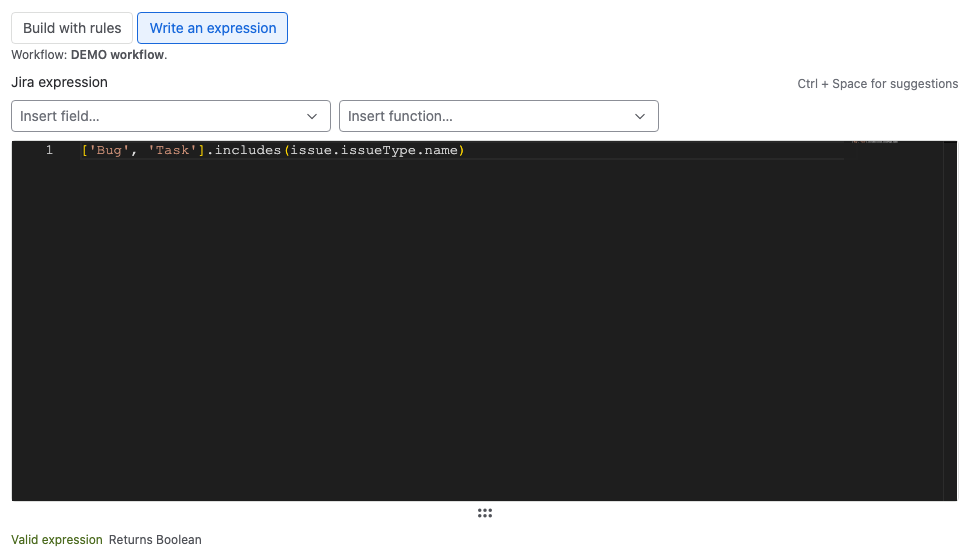
Select Write an expression. The Jira expression editor opens.
-
Type the expression. Press Ctrl+Space for suggestions.
-
To add a custom field, select it in Insert field…. The editor adds its ID with the field name as a comment.
-
To add a ready-made piece of code, select it in Insert function…, for example All subtasks done.
-
Read the status under the editor, and fix any error it shows.
Result: The status reads Valid expression and the type the expression returns, for example Returns Boolean.
The live check
When you stop typing, Script Master asks Jira to check the expression.
| Status | What it means |
|---|---|
| Valid expression | Jira accepts the expression. Returns shows the type it returns. |
| A warning about the return type | The expression returns a type the rule can't use, for example a number. |
| An error with a line and column | Jira can't read the expression. When a property name is misspelled, select the suggestion after Did you mean to fix it. |
| Syntax is valid (type checking unavailable) | The syntax is fine, but Jira didn't check the types. |
For a validator that returns a string, the status says that Jira blocks the transition and shows the string. An expression whose branches return different types, such as true or a message, returns Any. That's expected, and Script Master shows no warning for it.
Insert function
| Function | Inserts |
|---|---|
| Work type is one of | ['Story', 'Bug'].includes(issue.issueType.name) |
| Person is in a group | user.groups.includes('group-name') |
| Person has a space role | A check of the person's roles in the work item's space |
| All subtasks done | issue.subtasks.every(subtask => subtask.status.category.key == 'done') |
| Today | new Date().toCalendarDate() |
| A custom date field as a date | new CalendarDate(issue.customfield_10015). Custom date fields hold text. |
| Text of the description | (issue.description?.plainText ?? '') |
| Changed on the transition screen | issue.summary != originalIssue.summary. Validators only. |
| Block with a message | A check that returns a message. Validators only. |
Snippets
Select Snippets for complete examples to copy into the editor. Validators and conditions both get Current User Comment Verification, Issue Property Verification and Allowed Issue Types. Validators also get Block With A Custom Message and A Message Per Failed Check. Conditions also get Group Operator Awareness.
Switch back to the rule builder
A rule built with rules and then edited as an expression shows a warning: Jira runs the expression, not the rules. To drop your changes and use the rules again, select Go back to the rules (drops your changes).
For a rule that was always an expression, select Start with rules instead. The rules start empty and replace the expression once you confirm with Start over. Nothing changes in the workflow until you save.
Related
- Build a rule without code: checks and messages without writing code.
- Test a rule on a work item: run the expression against a real work item.
- Workflow validators: what each return value does.