Add a gadget to a dashboard
Add a Script Master gadget to a Jira dashboard to show content your Jira admin built for your teams. You add Jira's Custom Gadgets gadget, then pick which Script Master gadget it shows.
Applies to: Script Master for Jira · Cloud
Before you begin
- Jira permission: permission to edit the dashboard.
- App permission: none. A Jira admin has created a gadget in Script Master and turned it on. See Create a gadget.
Add the gadget
-
Open the dashboard and select Edit.
-
In the list of gadgets, search for
Custom Gadgetsand add it.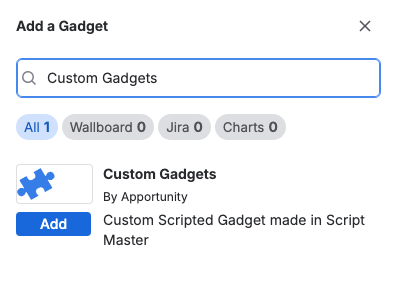
The new gadget shows Select a Custom Gadget: with the gadgets that are switched on, each with its description.
-
To show the gadget's title above it, turn on Show Title first.
-
Select the gadget you want.
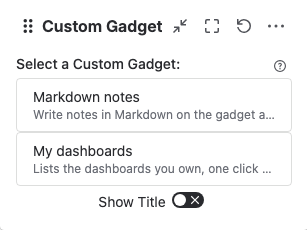
Result: The gadget loads and shows its content. Everyone who views the dashboard sees it, with data their own Jira permissions allow.
If the list says "Your Jira administrator has not configured any Custom Gadgets yet.", no gadget is switched on. Ask your Jira admin.
If the gadget shows a message
| Message | What it means |
|---|---|
| This gadget was deleted | The gadget was deleted in Script Master. Remove it from the dashboard, or pick another gadget in its settings |
| "This gadget couldn't load." | The gadget's code failed. Your Jira admin has been told. See Failures |
Related
- Gadgets: how gadgets work and what turning one off does.
- Create a gadget: for Jira admins.