Run a script
Run a JavaScript script in the Script Console and see what it returns, right below the code.
Applies to: Script Master for Jira and Script Master for Confluence · Cloud
Before you begin
- Jira or Confluence permission: Jira admin (the Administer Jira global permission) or Confluence admin.
- App permission: an active Script Master license. The Script Console doesn't need the Companion App.
- The script runs as you. A REST call fails if your own account isn't allowed to do it.
Run a script
-
In Script Master, select the Script Console tab. See Navigate the admin page if you can't find it.
The editor shows the script you last saved in this browser. The first time, it shows the How to Call the Jira REST API snippet (in Confluence, How to Call the Confluence REST API).
-
Write your script in the editor, or paste one from the Snippets library or the examples.
For example, in Jira this script lists the five oldest unresolved work items in the space
DEMO. It only reads:console.log('Checking DEMO');// One GET request, as you. Nothing is changed.const query = new URLSearchParams({jql: 'project = DEMO AND resolution = Unresolved ORDER BY created ASC',maxResults: '5',fields: 'summary',});const response = await requestJira(`/rest/api/3/search/jql?${query}`);if (!response.ok) throw new Error(`Jira answered ${response.status}`);const { issues } = await response.json();return issues.map(issue => `${issue.key} ${issue.fields.summary}`); -
End the script with
returnand the value you want to see, for examplereturn data.length;. To see a list one entry per line, return an array, as the example does. -
Select Run. In the editor, you can also press Shift+Ctrl+R (Shift+Cmd+R on a Mac).
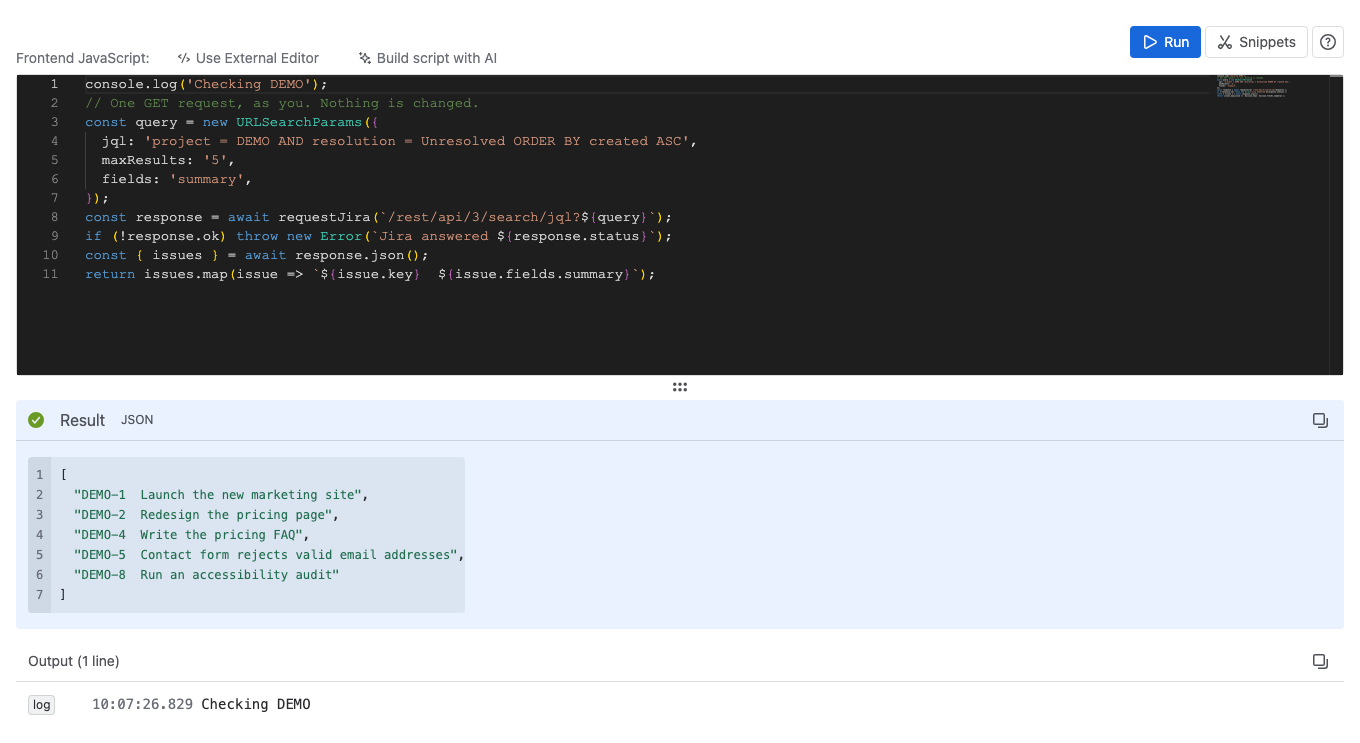
Result: The Result panel shows the returned value. The example's array appears as indented JSON, one work item per entry. Lines the script printed with console.log() appear under Output, and an error appears in a red Error panel with its line number. See Script Console output.
If the editor is empty, Run shows An empty script writes no story... and runs nothing.
Keep the script for next time
- Put the cursor in the editor.
- Press Ctrl+S (Cmd+S on a Mac).
Result: The flag Temporary Storage Reminder confirms that the script is stored in your browser's local storage. Next time you open the Script Console in this browser, the script is back in the editor.
The stored script lives only in this browser, and it isn't shared with other admins. Keep scripts you need again in your own files as well.
Open the Get started example in the Script Console
The Get started page of Script Master has a read-only example under Try it now. In Jira, it lists your five oldest unresolved work items. In Confluence, it lists the five pages changed most recently.
-
On the Get started page, under Try it now, select Open in Script Console.
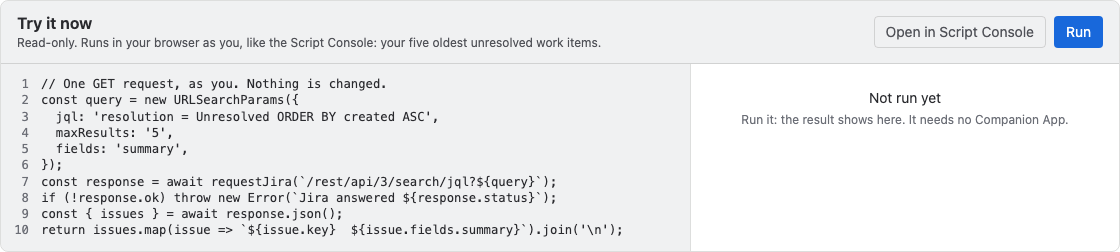
The Script Console opens with the example in the editor, in place of what it showed before.
-
Select Run.
Result: The work items or pages appear under Result. Change the example as you like. A script you saved earlier stays saved in your browser until you press Ctrl+S again.
Other ways to write the script
- Use External Editor connects the console to an editor on your computer. See External editor.
- Build script with AI opens Claude, ChatGPT or Gemini with a prompt that points the assistant to the Script Console AI prompt. For any other assistant, with any other LLM or coding agent shows the prompt to copy.
Related
- Script Console output: the Result, Output and Error panels.
- Use the Snippets library: ready-made scripts for common REST calls.
- Code editor: editor features and shortcuts.