Use the Snippets library
Copy a ready-made script from the Snippets library into the Script Console, then change it for your own data.
Applies to: Script Master for Jira and Script Master for Confluence · Cloud
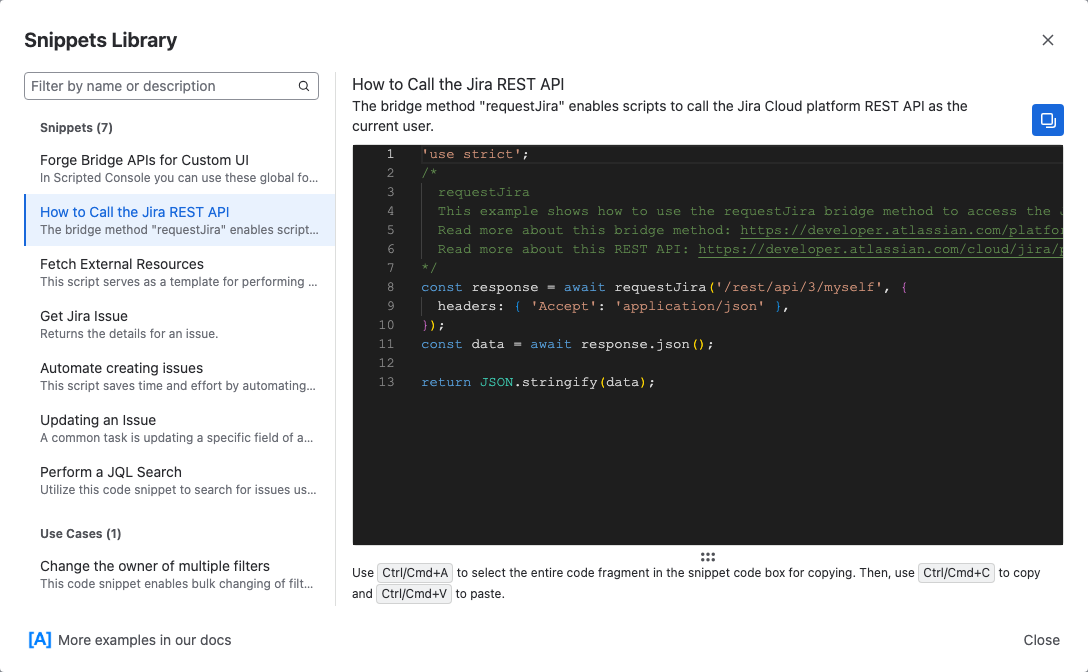
The library has two groups. Snippets are short examples of one API call. Use Cases are complete scripts for a real task, with their settings at the top.
Before you begin
- Jira or Confluence permission: Jira admin (the Administer Jira global permission) or Confluence admin.
- App permission: an active Script Master license, to run the script.
Copy a snippet into the editor
-
On the Script Console tab, select Snippets. The Snippets Library opens.
-
Find a script in the list on the left. To narrow the list, type in Filter by name or description.
-
Select the script. Its description and code appear on the right.
-
Select the copy icon next to the script's name.
-
Select Close, then paste the script into the editor with Ctrl+V (Cmd+V on a Mac).
-
Change the settings at the top of the script, such as keys, IDs or a JQL query.
-
Select Run.
Result: The script runs as you and its result appears below the editor. See Script Console output.
Some use cases change or delete data for real, for example Permanently purge trashed pages from multiple Confluence spaces. Read the script and its settings before you select Run.
What's in the library
| Product | Snippets | Use Cases |
|---|---|---|
| Jira | Calling the Jira REST API, fetch to another system, getting, creating and updating a work item, and the Forge bridge methods | Change the owner of multiple filters |
| Confluence | Calling the Confluence REST API, fetch to another system, showFlag, creating a page and adding a comment to a page | Permanently purge trashed pages from multiple Confluence spaces |
Snippets are starting points, not finished scripts. Check each response before you use it, for example with if (!response.ok). To search with JQL, use the example in Find work items with JQL: it calls the current search endpoint.
More examples in our docs at the bottom of the library opens the Script Console examples in these docs.
Related
- Run a script: run it, and keep it in your browser.
- Script Console examples: longer scripts for Jira and Confluence.
- Forge bridge API for browser scripts: the methods the snippets use.