Create a UI modification with rules
Build a UI modification from rules, without code, and switch it on for the forms you pick.
Applies to: Script Master for Jira · Cloud
Before you begin
- Jira permission: the Administer Jira global permission.
- App permission: a valid Script Master license. Without one, you can't save a new UI modification.
- Open Script Master. See Using Script Master.
Create the UI modification
-
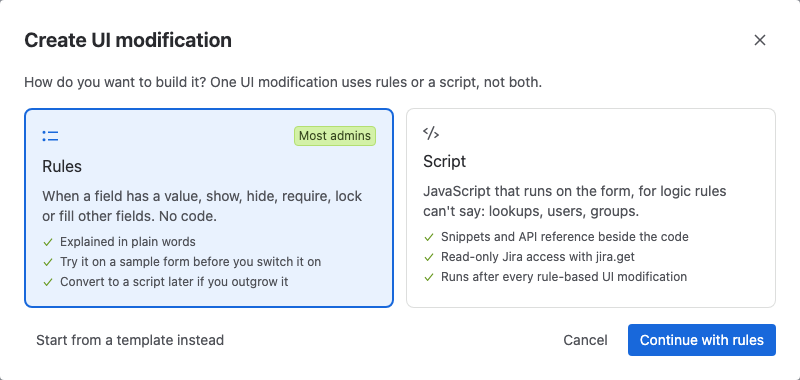
Select the UI Modifications tab, then select Create UI modification. The Create UI modification dialog opens.
On a site with no UI modifications yet, select Start from scratch instead. It opens the rules editor directly, so skip the next step.
-
Select Rules, then select Continue with rules. The editor opens with one empty rule.
-
In Name, enter a name, for example
Require details for urgent work. Optionally, add a Description. -
In Where it runs, pick the Spaces, the Work types and the Forms. Leave Spaces or Work types empty to mean all of them, but not both. See Where they run.
-
Build the rules. For example, set the first rule to WHEN
Priorityis any ofHighest, THENDue dateShow and require. See Conditions and actions.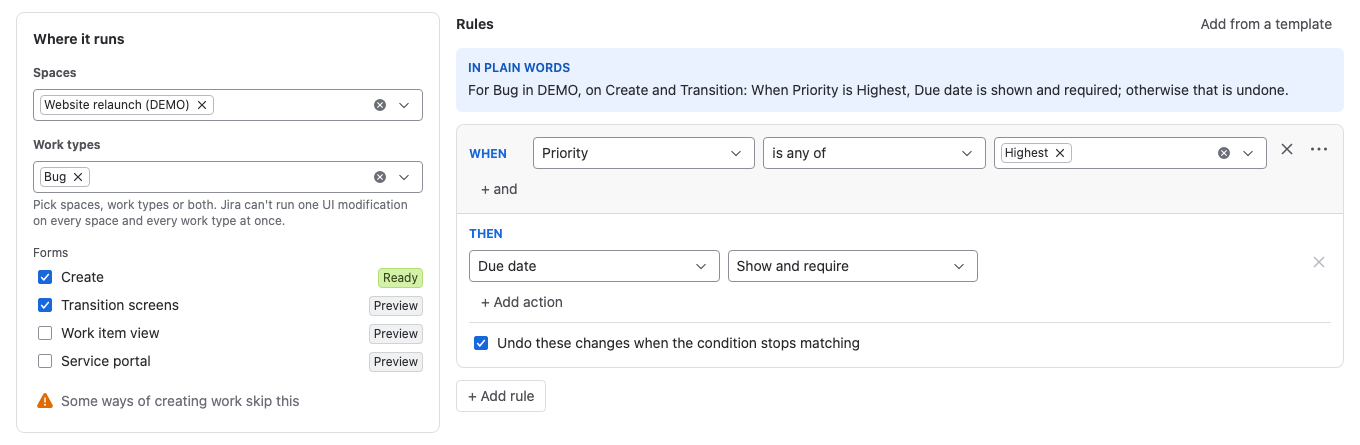
-
Read the IN PLAIN WORDS box above the rules, then check the form in Try it, as described below.
-
Turn on Enable, then select Save.
Result: a message confirms the save. Jira applies the UI modification the next time someone opens a matching form.
A new UI modification starts switched off, so saving it can't change a live form until you turn on Enable. To save without leaving the editor, press Ctrl+S (Cmd+S on macOS). To add a note to the version you save, open the menu next to Save and select Save with note….
Read the rules in plain words
The IN PLAIN WORDS box sums up what the UI modification does, built from its settings. For example:
For Bug in DEMO, on Create and Transition: When Priority is Highest, Due date is shown and required; otherwise that is undone.
If it reads differently from what you meant, fix the rules before you save.
Check the form in Try it
Try it shows how your rules change a form before you save. Nothing is saved or sent.
- Below the rules, select Try it. The panel opens under The form, with these rules.
- Enter values for the fields your conditions read.
- Read the result. The sample form marks changed fields, for example hidden or read-only, and What changed lists every change.
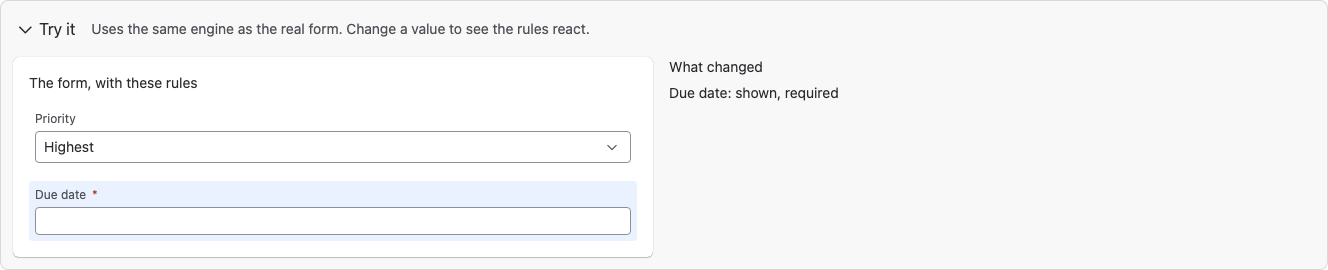
Try it uses the same engine as the real form. It doesn't run scripts.
Related
- Conditions and actions: every comparison and action, and how undo works.
- Start from a template: begin from a ready-made UI modification instead.
- Manage UI modifications: turn a UI modification on or off from the list.
- Failures on forms: what to do when a form reports a failure.