Manage UI modifications
Find a UI modification in the list, turn it on or off, duplicate it, see its history, or delete it.
Applies to: Script Master for Jira · Cloud
You need the Administer Jira global permission.
The list
The UI Modifications tab lists every UI modification on your site.
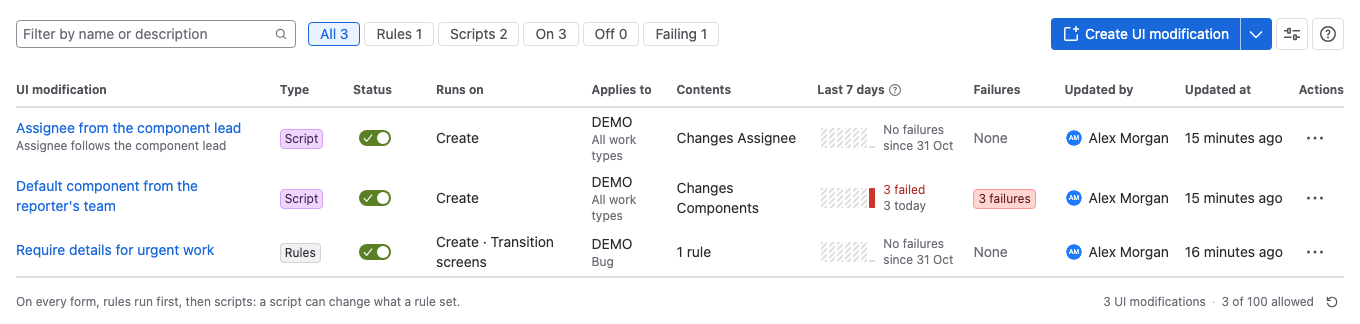
| Column | What it shows |
|---|---|
| Type | Rules or Script. |
| Status | A switch that turns the UI modification on or off. |
| Runs on | The forms, for example Create · Transition screens. |
| Applies to | The spaces and the work types. Not picked yet and Runs nowhere yet mean none are picked. |
| Contents | The number of rules, or the fields a script changes. |
| Last 7 days | Failures reported by forms per day. |
| Failures | Failures since the rules, script or scope last changed, or None. |
- To find one, type in Filter by name or description.
- To narrow the list, select All, Rules, Scripts, On, Off or Failing. Each button shows how many UI modifications it matches.
- To open one, select its name.
- Once you have 80 or more, the line under the list shows how many of the 100 allowed are left.
Turn a UI modification on or off
Select the switch in its Status column, or open Actions on its row and select Turn on or Turn off. In the editor, use the Enable switch and select Save.
A UI modification that is off doesn't load on any form. One that is on but has no spaces or work types picked runs nowhere until you pick them.
Duplicate a UI modification
Open Actions on the row and select Duplicate. The copy opens in the editor, switched off, with (copy) added to its name. Check Where it runs, then select Save.
In the editor, the same option is under More actions > Duplicate.
See and restore earlier versions
Every save makes a version. Open Actions on the row and select Version history…, or select Version history in the editor. See Version history.
Recover unsaved edits
Script Master keeps unsaved edits in your browser. If you reload or close the page before you save, the list shows Unsaved changes to and the name the next time you open the tab. Select Restore to open the editor with your edits, or Discard to drop them. See Navigate the admin page.
Delete a UI modification
-
Open Actions on the row and select Delete…. In the editor, select More actions > Delete…. A dialog asks you to confirm.
-
Select Delete.
warningDeleting can't be undone, and the version history goes with it. To keep a copy, export the UI modification first.
Result: the forms it ran on go back to normal straight away. To stop a UI modification without deleting it, turn it off instead.
Related
- Failures on forms: read the Failures column and fix what it reports.
- Import and export UI modifications: copy one to another site.
- UI Modifications: rules or a script, where they run, and what they can't do.