Require details for urgent work
Make sure every urgent work item in a space has a due date and a description before work starts on it.
Problem: People raise Highest work items with no due date and no description. Your team then chases the reporter to learn what's needed, and by when.
Solution: You add a UI modification that asks for the details while people fill in the form. Then you add a validator that blocks the transition when the due date is still missing, however the work item was created.
What you'll need
- Script Master for Jira, with an active license. See Get started.
- The Administer Jira global permission.
- A space, for example
DEMO, whose workflow you can edit, with a transition that starts work, for example Start progress. - No Companion App: UI modifications run in the browser, and Jira evaluates validators.
Set it up
1. Ask for the details on the form
-
In Script Master, select the UI Modifications tab.
-
Select the arrow next to Create UI modification (More ways to create) and select From a template. The Start from a template dialog opens.
-
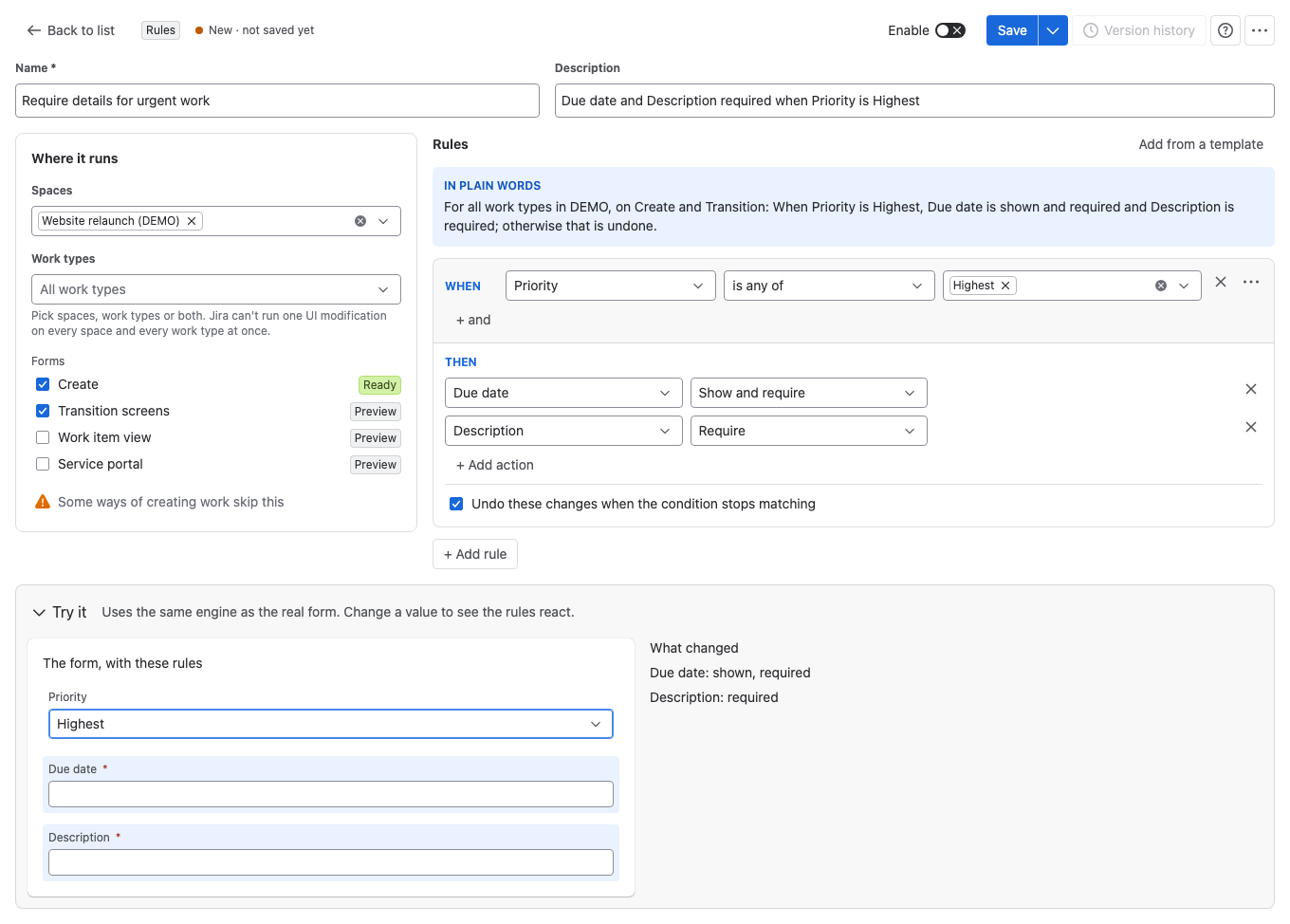
Select Require details for urgent work. The editor opens with the template switched off. Its rule says: when Priority is Highest, show and require Due date, and require Description.
-
In Where it runs, select
DEMOin Spaces. Keep Create and Transition screens in Forms. -
Below the rules, select Try it, set Priority to Highest, and check that Due date and Description are marked as required.
-
Turn on Enable, then select Save.
2. Block the transition without a due date
The form change helps people who use the Create dialog. Board inline create, the REST API, automation and bulk edit skip UI modifications, so a validator enforces the rule on the workflow.
-
In Jira's workflow editor, open the workflow of space
DEMOand select Start progress. -
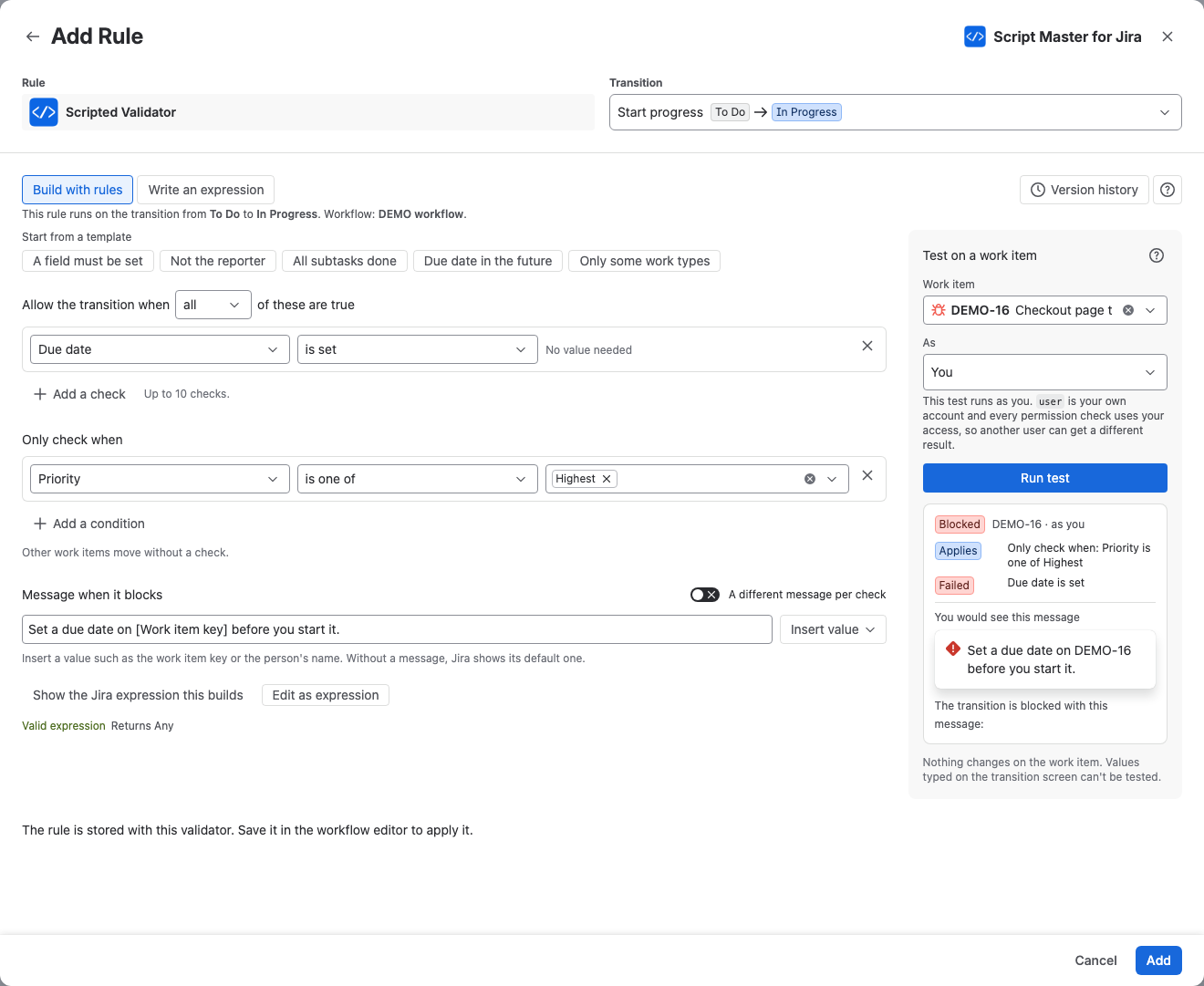
In the rules panel, select Add validate details rule, then Scripted Validator and Select. The Script Master editor opens with Build with rules selected.
-
Select Add a check, then choose Due date and is set.
-
Under Only check when, select Add a condition, for example work type or space. Choose Priority, is one of and
Highest. -
In Message when it blocks, enter
Set a due date on [Work item key] before you start it. -
In Test on a work item, pick a Highest work item with no due date and select Run test. The result reads Blocked, with your message.
-
Select Add, then Update workflow.
What your team will experience
- A reporter creates a work item in
DEMOand sets Priority to Highest. Due date appears and, with Description, becomes required. - Someone creates an urgent work item another way, for example through automation, with no due date.
- When a team member tries Start progress on it, Jira blocks the transition with the message, for example
Set a due date on DEMO-12 before you start it. - Work items with any other priority pass the validator as before.
Check that it works
- In
DEMO, open the Create dialog and set Priority to Highest. Confirm that you can't create the work item without a due date and a description. - Create a Highest work item with no due date from a board's inline create, then select Start progress. Confirm that Jira blocks it with your message.
Related use cases
- Show who worked on a work item or page: a panel on every work item of a space.
- Start from a template: the other UI modification templates.
- Build a rule without code: every check, condition and message option of the rule builder.
- Add a validator: the workflow editor steps in detail.