Settings
The Settings tab connects Script Master to its Companion App and lets you turn off error reports and usage counts. It's the same in Jira and Confluence.
Before you begin
- You need the Administer Jira global permission, or Confluence administrator rights.
What the tab shows
| Section | What it does | Default |
|---|---|---|
| Welcome to Script Master | A short description, with Documentation and Contact support links. | Not a setting |
| Secured Execution | The address of your Script Master Companion App, which runs server scripts. Current status shows Secured Execution, Not set up or Invalid Configuration. | Not set up |
| Error reports and usage counts | Send error reports and usage counts: whether Script Master sends errors in its own code and usage counts to its developer. | On |
Secured Execution
Web triggers, scheduled jobs, scripted custom fields and post functions run in your Companion App. Without one, they don't run. Fragments, gadgets, macros, UI modifications, validators and conditions don't need it.
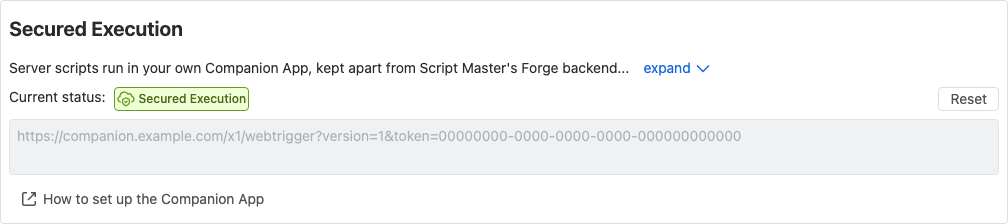
To connect a Companion App, paste its URL into the field and select Save. While the status shows Secured Execution, the field is locked and the button is Reset. Reset saves an empty URL at once, so server scripts stop running until you paste a URL and select Save again.
The Overview shows the same status. For setup, see Set up the Companion App.
Turn off error reports and usage counts
Script Master sends errors in its own code, and counts of admin actions and script runs, to Sentry, hosted in the US. They carry your site's ID and a pseudonymous user ID. Your scripts, their output and errors, field values, page and work item content, and names and emails are never sent. See Data security and privacy for the full list.
-
Open the Settings tab.
-
Under Error reports and usage counts, turn off Send error reports and usage counts.
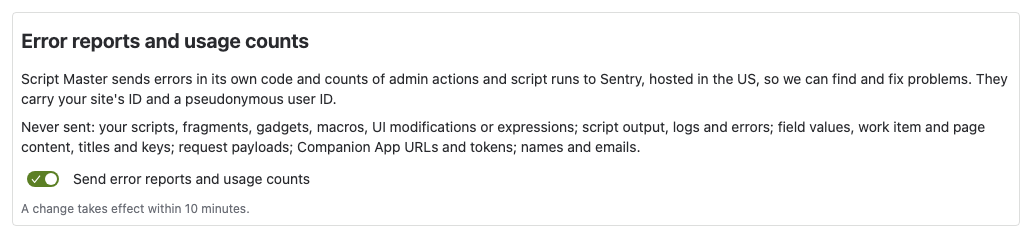
Result: Script Master stops sending error reports and usage counts for the whole site within 10 minutes. Turn the switch on again to resume.
If the setting can't be saved, the tab says The setting couldn't be saved. Try again.
Related
- Set up the Companion App: set up the Companion App.
- Data security and privacy: what Script Master stores and sends.
- The Overview tab: whether server scripts can run, at a glance.